
You’ve built a website, launched ads, and posted on social media, but you’re still not sure what’s actually working. Many small business owners struggle to measure website results and turn raw data into action. Google Analytics solves this problem by tracking visitor behavior, showing which marketing efforts drive sales, and revealing opportunities for growth. The new version, GA4, offers powerful insights that help you make smarter decisions without needing a data science degree. This guide breaks down what GA4 is, how to set it up, and how to use it to grow your business.
Table of Contents
- What is Google Analytics and why does it matter?
- The evolution to Google Analytics 4 (GA4)
- How to set up Google Analytics 4 for your business
- Understanding GA4 metrics: What to track and why
- Getting actionable insights: Turning GA4 data into growth
- Common mistakes and expert tips for small business owners
- Take your marketing further with expert support
- Frequently asked questions
Key Takeaways
| Point | Details |
|---|---|
| GA4 is essential now | Google Analytics 4 is the new standard for tracking and understanding website results since July 2024. |
| Event-based tracking | GA4 focuses on tracking user actions, providing deeper insights into how customers interact with your business online. |
| Setup is straightforward | Most small business owners can set up GA4 with basic steps or built-in website tools. |
| Focus on key metrics | Prioritize monitoring conversions and engagement metrics to guide your marketing decisions. |
| Turn insight into growth | Use GA4 data to regularly improve your marketing, adapt services, and boost sales. |
What is Google Analytics and why does it matter?
Google Analytics is a free tool that tracks and analyzes your website traffic. It shows you who visits your site, how they found you, what pages they view, and whether they take actions like filling out forms or making purchases. Understanding this behavior highlights what’s working in your marketing and what needs improvement.
GA4 is the current version, replacing Universal Analytics. It helps small businesses make data-driven decisions instead of guessing which marketing channels deliver results. Whether you run a brick-and-mortar shop, provide services, sell products online, or simply maintain a business website, GA4 gives you the insights needed to optimize your online presence.
“The difference between businesses that grow and those that stagnate often comes down to understanding what their customers actually do online.”
Who benefits from Google Analytics?
- Local service providers tracking phone calls and contact form submissions
- Retail stores measuring online and in-store visit connections
- Professional services monitoring consultation requests
- E-commerce businesses analyzing purchase patterns and cart abandonment
By connecting your marketing efforts to actual business outcomes, you can invest more in what works and stop wasting money on what doesn’t. Website analytics for business growth transforms guesswork into strategy, and GA4 makes this accessible even if you’re not tech-savvy. The key is knowing which metrics matter and how to interpret them for tracking digital marketing success.
The evolution to Google Analytics 4 (GA4)
Google Analytics underwent a major transformation when GA4 replaced Universal Analytics in July 2024. This wasn’t just a minor update but a complete rebuild of how website tracking works. Understanding what changed helps you appreciate why GA4 matters for your business.
GA4 is built around event-based tracking, meaning it monitors specific user actions like page views, button clicks, form submissions, and purchases. Universal Analytics focused on sessions and pageviews, but GA4 captures the full customer journey across devices and platforms. If someone researches your services on their phone during lunch and later completes a purchase on their laptop at home, GA4 connects these actions to understand the complete path to conversion.
The new system also prioritizes privacy through features like Consent Mode, which respects user preferences while still providing useful insights. This matters as privacy regulations tighten and customers become more protective of their data.
| Feature | Universal Analytics | Google Analytics 4 |
|---|---|---|
| Tracking model | Session-based | Event-based |
| Cross-device tracking | Limited | Built-in |
| Privacy features | Basic | Advanced (Consent Mode) |
| Machine learning | Minimal | Integrated predictions |
| Data retention | Indefinite | 2-14 months (configurable) |
Pro Tip: GA4’s event model means you can track virtually any user interaction that matters to your business. Set up custom events for actions like video plays, PDF downloads, or specific button clicks to understand exactly how visitors engage with your content.
The shift to GA4 reflects how people actually use the internet today, moving between devices and platforms seamlessly. For small businesses, this means better insights into marketing performance tracking and more accurate attribution of which marketing channels deserve credit for conversions.
How to set up Google Analytics 4 for your business
Setting up GA4 might seem intimidating, but the process is straightforward when broken into clear steps. GA4 setup requires creating an account, adding your website as a property, and installing the tracking code.
-
Create your Google Analytics account: Visit analytics.google.com and sign in with your Google account. Click “Start measuring” and enter your account name (usually your business name).
-
Add a property: Properties represent individual websites or apps. Name your property after your website and select your reporting time zone and currency.
-
Set up a data stream: Choose “Web” as your platform type, enter your website URL, and name your stream. GA4 generates a Measurement ID (starts with “G-”).
-
Install the tracking tag: You have three options:
- Use Google Tag Manager for flexible, code-free implementation
- Install a plugin if you use WordPress, Shopify, or similar platforms
- Manually add the code snippet to your website’s header section
-
Verify tracking works: Return to GA4 after installation and check the real-time report. Visit your website in another browser tab and confirm that your visit appears in the real-time data.
Pro Tip: Filter out your own visits to avoid skewing your data. In GA4, create a filter under Admin > Data Settings > Data Filters to exclude traffic from your office IP address.
Common setup pitfalls include forgetting to verify that tracking works, accidentally installing the code twice (which doubles your numbers), or not excluding your own visits from reports. Take time to confirm everything works correctly before relying on the data for business decisions.
If you’re building a business website from scratch, plan for analytics from the start. Proper tracking helps you improve Google visibility by showing which content and keywords drive the most valuable traffic. For detailed technical guidance, consult the official GA4 setup guide.

Understanding GA4 metrics: What to track and why
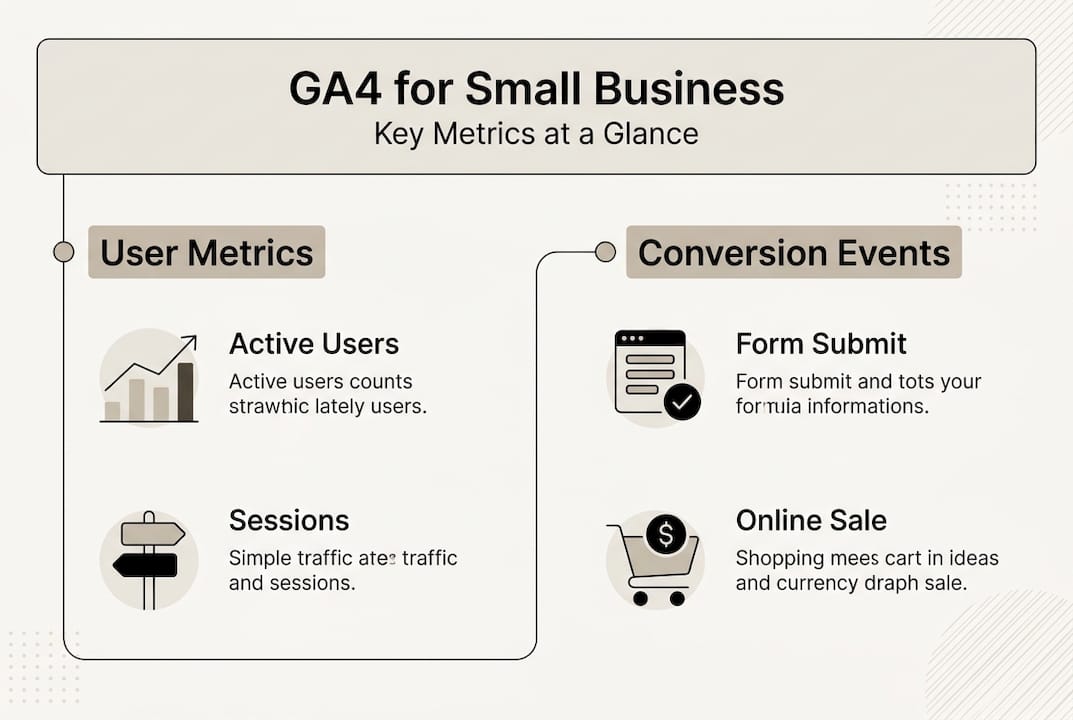
GA4 tracks dozens of metrics, but small business owners should focus on the ones that directly connect to business outcomes. GA4 tracks events like page_view and session_start automatically, plus custom events you configure for specific business actions.
Core metrics explained:
- Users: The number of unique visitors to your site. This shows your reach and audience size.
- Sessions: Groups of user interactions within a time period. One user can have multiple sessions.
- Events: Specific actions users take, from viewing pages to clicking buttons or completing purchases.
- Engagement rate: Percentage of sessions lasting over 10 seconds, having a conversion event, or viewing multiple pages.
- Conversions: Events you mark as important business outcomes, like form submissions or sales.
| Business Type | Primary Metrics to Track | Key Conversion Events |
|---|---|---|
| Local service provider | Users, engagement rate, conversions | Contact form submissions, phone clicks |
| E-commerce store | Users, sessions, conversion rate, revenue | Add to cart, begin checkout, purchase |
| Professional services | Users, engagement rate, session duration | Consultation requests, resource downloads |
| Brick-and-mortar retail | Users, store locator clicks, directions requests | Get directions, store hours views |
For most small businesses, the metrics that matter most are those tied to revenue. Track how many visitors become leads or customers, which traffic sources deliver the highest-quality prospects, and which pages or content types drive the most conversions.
Pro Tip: Set up conversion tracking for every important business action. In GA4, go to Admin > Events, find the event you want to track (like form_submit), and toggle “Mark as conversion.” This lets you see exactly which marketing efforts drive results.
Understanding these fundamentals enables better campaign performance tracking and helps you focus on marketing performance measurement that actually impacts your bottom line.
Getting actionable insights: Turning GA4 data into growth
Collecting data means nothing if you don’t use it to improve your marketing and grow sales. GA4 provides several report types and tools that transform raw numbers into actionable business intelligence.
Key GA4 reports for small businesses:
-
Overview reports: Quick snapshots of users, sessions, and conversions. Check these weekly to spot trends.
-
Acquisition reports: Show how visitors find your site (Google search, social media, direct visits, referrals). Identify which channels deserve more investment.
-
Engagement reports: Reveal which pages and content keep visitors interested. Use this to create more of what works.
-
Conversion reports: Track completion of your most important business goals. Monitor these daily or weekly depending on your sales cycle.
GA4’s Explorations feature offers deeper analysis. GA4 uses machine learning for predictions and supports funnel analysis to identify where potential customers drop off. Create a funnel exploration to see how many visitors view your service page, click to your contact form, and actually submit it. If you lose 80% of visitors between viewing the form and submitting it, you know exactly where to focus improvement efforts.
“The businesses that win online are those that continuously test, measure, and optimize based on real user behavior, not assumptions.”
Pro Tip: Link GA4 with Google Ads to see which keywords and campaigns drive not just clicks but actual conversions. This connection enables smarter ad spending and better digital marketing ROI tracking.
Practical next steps:
- Schedule a weekly 15-minute analytics review to check key metrics
- Compare month-over-month performance to identify growth trends
- Test changes to underperforming pages and measure the impact
- Adjust your marketing budget based on which channels deliver the best return
For advanced insights, explore the GA4 Exploration reports to build custom analyses tailored to your specific business questions.
Common mistakes and expert tips for small business owners
Even after successful setup, many small business owners make avoidable mistakes that compromise their data quality or miss opportunities for deeper insights. Here’s how to sidestep the most common pitfalls.
Biggest GA4 mistakes:
- Counting your own visits: Your daily website checks inflate traffic numbers and skew behavior metrics. Always filter out internal traffic.
- Ignoring conversion setup: GA4 won’t automatically know which events matter to your business. Mark important actions as conversions.
- Never checking reports: Installing GA4 but not reviewing data regularly means missing opportunities and problems.
- Skipping verification: Assuming tracking works without confirming it in real-time reports leads to data gaps.
- Not using custom events: Default tracking misses business-specific actions like calculator uses, quote requests, or specific product interactions.
Expert tips for better analytics:
- Filter your own visits using IP exclusion or internal traffic filters
- Set up all relevant conversions immediately, not months later when you’ve already lost historical data
- Use Explorations to dig deeper when you notice unusual patterns in standard reports
- Create custom dashboards that show only the metrics you check regularly
- Schedule monthly reviews to analyze trends and adjust strategy
Pro Tip: Create a simple spreadsheet to track your key metrics weekly. Note your total users, conversion rate, and top traffic source. Over time, this creates a clear picture of growth trends that’s easier to understand than navigating GA4 reports.
By avoiding these mistakes and following expert practices, you’ll build reliable data that supports smart business decisions. Good analytics habits separate businesses that grow strategically from those that waste marketing budgets on ineffective tactics. Learn more about driving business growth with analytics to maximize your investment in digital marketing.
Take your marketing further with expert support
You now understand how Google Analytics 4 works and why it matters for your business growth. But knowing the theory and executing a complete digital marketing strategy are different challenges. Many small business owners find that professional support accelerates results and prevents costly mistakes.

Ibrandmedia specializes in helping small businesses like yours turn analytics insights into revenue growth. Whether you need help setting up GA4 correctly, interpreting your data, or building a complete digital marketing strategy, expert guidance ensures you’re not leaving money on the table. Our team can optimize your website for search, implement conversion tracking that actually works, and show you exactly which marketing investments deliver the best returns. We’ve helped hundreds of small businesses boost their local sales by combining analytics with proven SEO and marketing tactics. Ready to stop guessing and start growing? Explore how Ibrandmedia digital marketing services can transform your online presence into a reliable source of new customers.
Frequently asked questions
Is Google Analytics 4 free for small businesses?
Yes, Google Analytics is free and available to businesses of any size, including small business websites. There are no hidden costs or usage limits for standard features.
What’s the difference between Universal Analytics and GA4?
GA4 is event-based and designed for privacy and cross-device tracking, while Universal Analytics tracked sessions. GA4 also includes machine learning predictions and better integration with Google Ads.
Do I need technical skills to install Google Analytics on my site?
Basic setup can be done without coding by using plugins or Tag Manager, but customizations may require technical help. Most website platforms offer simple installation options.
What should I track first in GA4 for my small business?
Start by tracking page_view and session_start events, plus business-specific custom events like form submissions or online sales. Focus on actions that directly connect to revenue.
How often should I check my Google Analytics reports?
Check at least once a week to spot trends, track conversions, and update your marketing strategy. Regular review and strategic adjustments based on analytics data help you stay competitive and maximize marketing ROI.
Recommended
- Real-Time Website Analytics: Boosting Small Business Growth | Ibrandmedia
- How to improve Google ranking: SEO for small business 2026 | Ibrandmedia
- Improve Google Visibility: Step-By-Step Guide for Small Businesses | Ibrandmedia
- Complete Guide to Online Analytics for Business | Ibrandmedia
- Step-by-Step Guide to Setting Up Your Google Analytics Account [Instructional Video]
Recent Comments