
To set up Bing Places, sign in at bing.com/forbusiness with a Microsoft account, then either import your Google Business Profile or add your business by hand. Next, claim or create the listing and verify that you own it. The whole job usually takes under an hour of your time, it costs nothing, and it puts your name, address, hours and photos in front of people who search on Bing and see Bing Maps. This guide walks through each step, shows where owners most often get stuck, and explains what to do once the listing is live.
TL;DR
- Bing Places for Business is a free platform for managing how your business appears in Bing search results and Bing Maps, now at bing.com/forbusiness.
- The fastest route is importing your Google Business Profile. Review every field afterward, because an import is a starting point, not a finished listing.
- Your business name, address and phone number must match your real-world signage and your other listings exactly.
- Verification is what makes the listing yours. Until you complete it, you cannot control what shows.
- Set a quarterly reminder to check hours, photos and links. Stale data costs you calls.
Table of Contents
- What Bing Places for Business does for you
- Before you start: gather your information
- Step-by-step Bing Places setup
- Fill in the profile completely
- Service-area businesses: plumbers, HVAC and home contractors
- Our perspective: treat Bing as part of one listing system
- Keep your listing accurate over time
- Where Bing fits in your local marketing
- Need a hand with your listings?
- FAQ
- Sources
What Bing Places for Business does for you
Bing Places is Microsoft’s tool for local business listings. Microsoft describes it as the place to claim or update your business listing so your details appear correctly in Bing Maps search results. In practice, that means the box with your hours, phone number, directions, photos and website that appears when someone searches for your business name or for a service near them.
In October 2025, Microsoft launched a new Bing Places experience and moved the owner dashboard to bing.com/forbusiness, replacing the older bingplaces.com address. Existing users are migrated and redirected automatically. If an older tutorial tells you to go to the legacy domain, you will land in the new place anyway, but the screens may look different from the screenshots.
Is it worth the effort?
Bing is the smaller player. Industry commentary puts it at roughly 4 to 5 percent of global search traffic, so no one should expect it to outperform Google for a local business. The case for setting it up is practical:
- It is free, and a complete profile takes one sitting.
- Wrong information on any map or search product costs you real customers: a customer who drives to a closed location or calls a dead number rarely gives a second chance.
- The same commentary notes that accurate listings also influence local and AI-powered search recommendations, where inconsistent business data can mean missed opportunities.
- An unclaimed listing can still show up with data you did not write. Claiming it puts you in control.
If you already keep a Google profile up to date, Bing is the cheapest extra visibility you can add. If you have not built a Google profile yet, start there, then come back. Our guide to Google Business Profile tips covers that first step.
Before you start: gather your information
Most failed setups come from missing or mismatched details, not from the software. Collect these first and keep them in one document:
- Legal and public business name. Use the name on your storefront, trucks or signage. Do not add keywords such as “Best Plumber Dallas” unless that is your actual name.
- Street address. If customers visit you, use the physical address. If you travel to customers, you will likely hide or define a service area instead (more on that below).
- Phone number. A local number that you answer, ideally the same one on your website.
- Website URL. The exact page you want people to land on, usually your homepage or a location page.
- Hours. Regular hours, plus any holiday exceptions.
- Categories. The one main category that describes what you do, plus a few secondary ones.
- Photos. Your logo, exterior, interior, team and finished work. Sharp, recent and real.
- A short description. Two or three plain sentences about what you do and where.
This list doubles as your master record. The same data should appear identically everywhere your business is listed, a point we explain in why local citations matter for small businesses.
Step-by-step Bing Places setup
Step 1: Sign in with a Microsoft account
Go to bing.com/forbusiness and choose to sign in. You can use a Microsoft account, and the sign-in screen also offers other options. If you do not have a Microsoft account, create one. Use an email address that belongs to the business or to an owner who will stay with the company, not an employee’s personal inbox. When that person leaves, you do not want your listing to leave with them.
Step 2: Choose how to add your business
You have two main paths.
| Path | Best for | Trade-off |
|---|---|---|
| Import from Google Business Profile | Businesses with a complete, accurate Google profile | Fast, but you must review every imported field |
| Add manually | Businesses with no Google profile, or ones that want to write fresh data | Slower, but you control every field |
Microsoft says the new interface includes an upgraded Google import flow that is faster and more reliable, with better preservation of core details such as name, contact information and operating hours. That makes import the sensible default for most owners.
Step 3a: Import from Google Business Profile
- Choose the import option and sign in to the Google account that manages your profile.
- Select the location or locations you want to bring over.
- Confirm the import and wait for the data to appear in your Bing dashboard.
- Open each location and check it against your master document.
If you manage several locations, import them together, then check each one separately. Copy errors tend to repeat across a batch.
Step 3b: Add your business manually
- Search for your business name and address first. If a listing already exists, claim it instead of creating a duplicate.
- If nothing matches, choose to add a new business and enter your name, address, phone, website, hours and categories.
- Add your photos and your description.
- Save the listing.
Duplicates are a common headache. Two listings for one location split your reviews and confuse customers, so search carefully before creating anything new.
Step 4: Verify your listing
Verification proves that you are entitled to manage the listing. Microsoft offers different verification options depending on the listing and the business, and the choices you see in your dashboard are the ones available to you. Follow what the dashboard shows rather than a tutorial that lists methods you may not be offered.
Two habits prevent most verification trouble:
- Enter your business name and address exactly as they appear in the real world and on your other listings.
- If the method involves a code sent to you, make sure someone is watching that phone, inbox or mailbox, and enter the code promptly.
Until verification is done, treat the listing as unfinished. Put a reminder on your calendar to check back if you chose a method that takes days.
Fill in the profile completely
A verified but half-empty listing wastes the opportunity. Go through each section deliberately.
Name, address and phone
These three items, often called NAP, must be identical wherever you appear. “Suite 200” versus “Ste. 200” looks trivial to you, but inconsistent formatting is the kind of discrepancy that makes data harder to trust. Pick one format and use it everywhere.
Categories and description
Choose the category that most precisely describes your core service. An HVAC contractor should pick the HVAC category, not a vague “contractor” label. Add secondary categories only for services you truly provide. In the description, write like a person: what you do, who you serve and where, in plain language. No keyword lists.
Hours
Set regular hours and update them for holidays and seasonal changes. For businesses that take after-hours emergency calls, state that clearly in your description, not by pretending the shop is open 24 hours if it is not.
Website link
Link to a page that matches what the listing promises. A dentist’s listing should land on a page about the practice, with a clear way to book. A banquet hall should land on a page with capacity, photos and an inquiry form. If your site is slow or awkward on phones, fixing it will do more than any listing tweak. Our website design basics for local businesses explains what a local landing page needs.
Photos
Businesses manage their own imagery through the Bing Places portal. Microsoft’s Bing Local Image program is for individual contributors, and organizations are not eligible, so do not try to route your photos through it. Upload real pictures: your storefront so people recognize it from the street, your interior, your team, and finished work. A med spa can show treatment rooms, a venue can show the hall set for an event, a contractor can show completed jobs.

Service-area businesses: plumbers, HVAC and home contractors
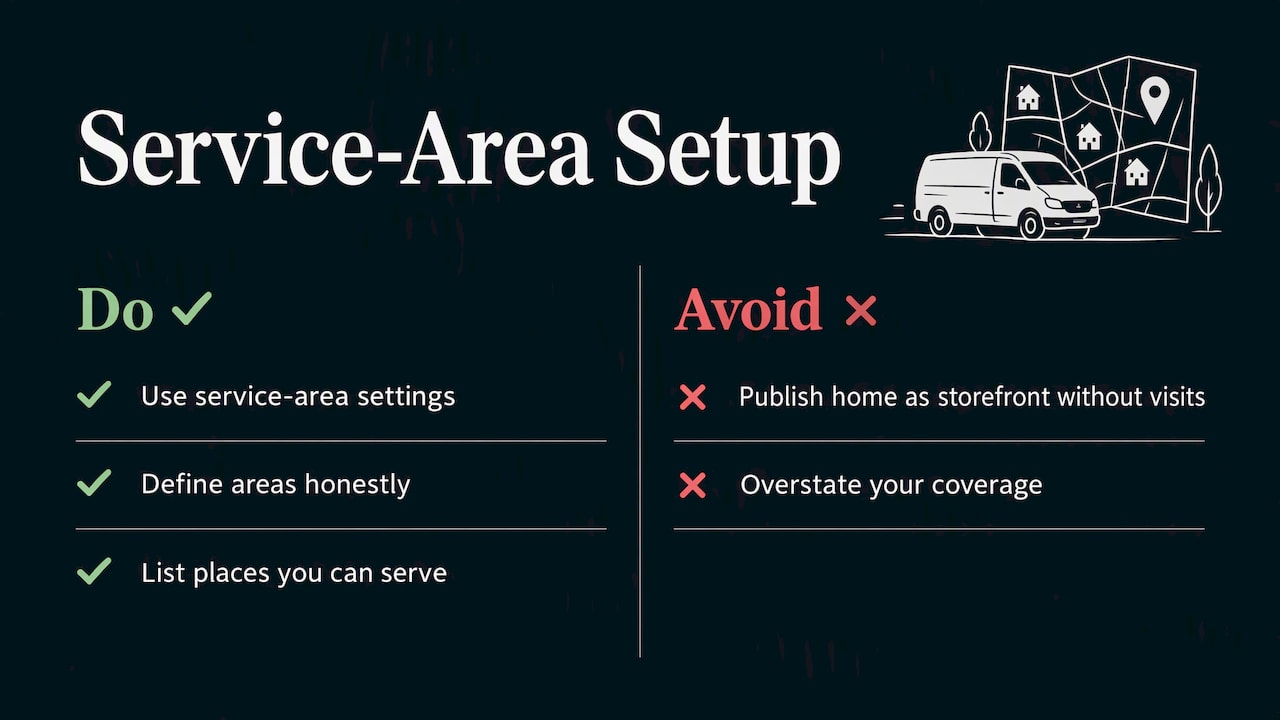
If you go to customers instead of welcoming them at a shop, your setup choices matter more. Do not publish a home address as though it were a storefront unless customers really visit it. Use the options in the dashboard for service-area businesses, define the areas you cover honestly, and keep them to places you can actually serve. Overstating your coverage invites bad leads and weakens trust.
Service-area businesses also depend more heavily on the website behind the listing, because there is no storefront to anchor trust. We cover this in depth in our service area business SEO playbook and in essentials of local search for service businesses.
Our perspective: treat Bing as part of one listing system
We work with small and local businesses: home service companies, dentists, med spas, venues and retailers. The pattern we see is that owners treat each directory as a separate chore, set it up once and never look at it again. That is where listings go wrong.
Our view is simple. Your business information is one asset with many outlets. Google, Bing, Apple, industry directories and your own website should all say the same thing. Bing Places is not a project of its own. It is one more outlet where that asset must be correct.
That changes how you should work:
- Keep one master record. Every change starts there, then gets pushed to each platform.
- Import, then edit by hand. Import saves time, but we never trust an import without reading every field.
- Calendar the upkeep. A listing that was right in March can be wrong by September after a new phone number, a changed hour or a second location.
- Measure what matters. A listing is worth having when it produces calls, direction requests and bookings. Track those, and do not count impressions as success.
Budget-conscious owners especially should note that this work costs time, not money. It is one of the few marketing tasks where careful attention beats a large spend.
— TONY
Keep your listing accurate over time
Setup is the easy part. Maintenance decides whether the listing keeps working.
Update triggers
Change your Bing listing the same day you change any of these:
- Phone number or website address
- Business hours, including holiday hours
- Location or suite number
- Services you offer or stop offering
- Business name after a rebrand
Our guide to updating business listings gives a repeatable routine for this, and our piece on local listings optimization shows what to improve once the basics are right.
A simple quarterly check
- Search your business name on Bing and read the result as a customer would.
- Click your website link and your phone number on a mobile device.
- Compare hours and address against your master record.
- Replace outdated photos.
- Look for duplicate or unfamiliar listings for your location.
Ten minutes, four times a year. It is cheaper than one missed job.
Common mistakes to avoid
- Keyword-stuffed names. They conflict with your signage and can cause problems.
- Multiple Microsoft accounts managing the same business. Pick one owner account and document who has access.
- Using a call-tracking number without keeping your main number visible. If you use tracking numbers, make sure your primary number is still consistent across listings.
- Forgetting the Bing listing after a move. Old addresses linger in directories long after you leave.
- Never checking back. Public suggestions and data feeds can change what appears, so look at your listing periodically.
Where Bing fits in your local marketing
A good listing is the foundation, not the whole building. Customers choose between businesses on the strength of reviews, a clear website, consistent information and how easy you make it to contact you. If you want a broader plan, start with how to get found locally and improving local search rankings for small businesses. For how the different listing sites work together, see explaining local business listings.
Need a hand with your listings?
If you would rather spend your day running the business than juggling directories, IBrand Media can help. We offer local marketing, SEO optimization, web design and real-time performance tracking for small and local businesses, with a custom plan for each client. We can set up and check your listings, make sure your website supports them and show you which calls and leads they produce. Take a look at what we offer and tell us about your business.
FAQ
Is Bing Places for Business free?
Yes. Microsoft describes Bing Places for Business as a free platform for managing your presence in Bing search results and Bing Maps. Be cautious with any company that offers to charge you for the basic listing itself. Paid help with setup or upkeep is a service fee, not a Bing charge.
How do I add my business to Bing Maps?
Use Bing Places for Business at bing.com/forbusiness. Sign in with a Microsoft account, search for your business to claim an existing listing or add a new one, enter your details and complete verification. Microsoft’s help page on adding and managing a listing confirms that this is the route for changing information in Bing Maps results.
Can I import my Google Business Profile into Bing Places?
Yes. The current Bing Places experience includes a Google import flow meant to preserve your name, contact details and hours. Check every imported field afterward and correct anything that looks off before you verify.
Do I still need to set up Bing if I rank well on Google?
We think so, because it is free and quick. Bing’s share of search is small, but a correct listing protects you from wrong data and costs almost nothing to maintain. Start with Google, then add Bing and keep both in sync.
Sources
- Introducing the New Bing Places for Business, Bing Blog
- Add and manage your business listing, Microsoft Support
- Microsoft Bing Local Image upload terms of use, Microsoft Support
- How To Set Up Your Bing Business Profile, Shopify
Recent Comments