
Create a GA4 property, add a web data stream, install the Google tag or use Google Tag Manager, mark several key events as conversions, and confirm everything in Realtime or DebugView. That sequence gets a small business from zero to usable data in under an hour, and every later decision about reports, ads, or privacy settings builds on it.
TL;DR:
- Small businesses should create a single GA4 property, set the correct time zone and currency, and enable Enhanced Measurement for meaningful data from day one.
- Installing GA4 through Google Tag Manager is recommended if custom tracking or future event expansion is expected, as it simplifies management and scalability.
- Focus on five key events—form submissions, bookings, purchases, downloads, and call clicks—that directly reflect revenue potential instead of tracking many unnecessary metrics.
- Link GA4 to Google Ads when running paid campaigns to enable smart bidding and consider BigQuery export only if detailed raw data analysis is essential.
- Regularly verify data collection via Realtime and DebugView, check and update consent mode settings, and assign team permissions carefully to prevent setup issues and ensure data accuracy.
Table of Contents
- Create your GA4 account and property
- Install measurement: Google tag vs. Google Tag Manager
- Configure events and conversions
- Link Google Ads and BigQuery when it makes sense
- Verify, test, and troubleshoot data collection
- Privacy, consent mode, and data retention essentials
- Common setup mistakes and how to avoid them
- How Ibrand.media helps small businesses with GA4 setup
- Setting up user permissions and roles for your team
- Default reports worth checking and how to customize them
- Connecting GA4 with the tools you already use
- Author’s 30-day GA4 checklist
- How we can help with GA4 setup and tracking
- FAQ
Create your GA4 account and property
Most small businesses need exactly one Google Analytics account and one property. A second account only makes sense if you run entirely separate businesses under different legal names; a second property inside the same account covers a second website or app just fine, according to Google’s account and property guidance.
The setup flow inside Analytics follows a fixed order, as described in Google’s setup instructions:
- Sign in to Google Analytics and create an account, naming it after your business.
- Create a property under that account, then set the correct time zone and currency before any data starts flowing.
- Choose your industry category and describe how you plan to use Analytics, which tells Google which default reports to surface.
- Add a web data stream for your website’s URL.
- Turn on Enhanced Measurement, which automatically tracks scrolls, outbound clicks, site search, and video engagement without extra code.
That last step matters more than it looks. Enhanced Measurement is the difference between a bare event count and a property that already tells you something about visitor behavior on day one.
Install measurement: Google tag vs. Google Tag Manager
You have two realistic ways to get GA4 collecting data: paste the Google tag directly into your site, or route everything through Google Tag Manager. Google’s setup guide covers both paths, confirming that installation options include Google Tag Manager and direct tag insertion.
Direct installation means copying your measurement ID from the data stream details and pasting the gtag.js snippet into your site’s header, usually through a theme editor or a header-injection plugin. It works, and it is fast for a static brochure site that will never need custom tracking.
Google Tag Manager asks for a one-time container install, then every tag, trigger, and custom event lives inside GTM instead of your site code. That pays off the moment you want to track button clicks, scroll depth on a specific page, or form submissions that Enhanced Measurement does not catch on its own.
WordPress site owners can use a dedicated analytics plugin or drop the GTM container into the theme’s header and footer.
Shopify store owners typically add the container through the theme’s custom scripts section or a tag manager integration built for ecommerce platforms, such as those supporting Shopify search and discovery.
Agencies managing multiple client sites generally standardize on GTM so every new event follows the same process; our own Google Tag Manager setup guide walks through the container install step by step.
Pro Tip: If you think you might ever want custom event tracking, install GTM now. Swapping from a direct tag to GTM later means re-auditing every page.
Configure events and conversions
GA4 does not use “goals” the way Universal Analytics did. Everything is an event, and you choose which events matter enough to call conversions, a change confirmed in Google’s guidance on events and key events.
For most small businesses, five events cover the whole sales funnel:
- Contact form submission.
- Booking or appointment request.
- Product purchase or checkout completion.
- Lead magnet or resource download.
- Click-to-call on a phone number.
Pick a few of these, not all the many things your site technically tracks. A property with twenty “conversions” tells you nothing; a property with four tells you exactly where revenue starts.
To mark an event as a conversion, open the Events section in GA4’s Admin panel, find the event name, and toggle “Mark as key event.” Events that do not fire automatically, like a specific button click or a multistep form, need a custom event built in Google Tag Manager first. Our guide to conversion tracking for small businesses breaks down which events are worth the setup effort and which ones you can skip for now.
Link Google Ads and BigQuery when it makes sense
If you run any paid campaigns, link GA4 to Google Ads. The connection lets Ads use your key events for smart bidding, which Google’s documentation on creating conversions from key events describes as the main benefit of the link, and Google Ads’ own linking guide frames it as essential for campaign optimization.
- Link Ads first if you spend any money on Google campaigns; smart bidding without key event data is guessing.
- Consider BigQuery export only if you need raw, unaggregated event data for custom analysis.
- BigQuery offers daily, fresh daily, or streaming export; Google notes that streaming has ongoing costs while daily export or the free sandbox tier suits most small sites.
Skip BigQuery entirely if the built-in GA4 reports already answer your questions.
Verify, test, and troubleshoot data collection
Before trusting any report, confirm the data is actually arriving.
- Open Realtime in GA4 and browse your own site in another tab; you should see yourself appear within seconds.
- Switch to DebugView and trigger each key event (submit a test form, click a tracked button) to watch it register live.
- If nothing shows up, check the measurement ID on the tag against the one in your data stream settings; a mismatched ID is the most common failure.
- Confirm the tag fires on every page template, not just the homepage, and check whether a consent banner is blocking it before interaction.
- Use Tag Assistant or your browser’s developer tools to see whether the gtag or GTM script loads at all.
Most “GA4 isn’t working” problems trace back to one of those five checks.
Privacy, consent mode, and data retention essentials
Consent Mode is not a cookie banner. It is a signaling layer that works alongside a banner you already have, and Google’s documentation describes both basic and advanced implementations.
- If you serve visitors in the EEA or UK, you need consent mode paired with a compliant banner, not just a banner alone.
- Advanced implementations let tags load before consent so Google can model behavior for users who have not yet responded, though Google notes this modeling only works reliably once a property clears a minimum daily event threshold.
- Data retention for standard GA4 properties defaults to a shorter window but can be extended; most small businesses are better served choosing the longer option so year-over-year comparisons stay possible.
Check your retention setting once at launch. It is easy to forget and painful to discover two years late.
Common setup mistakes and how to avoid them
A handful of errors account for most of the “my GA4 data looks wrong” complaints.
- Skipping Enhanced Measurement, or turning it on but never checking which sub-events actually fired.
- Never marking any event as a key event, which leaves the conversions report permanently empty.
- Mixing time zones or currencies across properties when a business operates more than one site, which throws off revenue comparisons.
- Trusting a report without ever opening DebugView first, so a broken tag goes unnoticed for weeks.
Pro Tip: Set a calendar reminder to check DebugView once a month, even after setup looks clean. Theme updates and plugin changes break tags more often than people expect.
How Ibrand.media helps small businesses with GA4 setup
Analytics setup is one of the smaller jobs we handle for small-business clients, but it is the one that makes every other service measurable.
- We handle property creation, Google Tag Manager implementation, and conversion tracking setup so events match the business’s actual sales funnel.
- We build simple recurring reports instead of leaving clients to interpret GA4’s default dashboards alone.
- DIY readers can start with our Google Tag Manager setup guide or our simple guide to Google Analytics for small businesses before deciding whether to bring in help.
If the setup still feels like one more task on a long list, a short audit usually takes less time than troubleshooting a broken tag six months from now.
Setting up user permissions and roles for your team
GA4 offers four permission levels at the account or property level: Viewer, Analyst, Editor, and Administrator. Give most team members Viewer access, which lets them see reports without touching settings. Reserve Editor access for whoever manages campaigns or needs to create audiences and explorations, since Editor can modify most property settings but cannot manage account-level users or billing links.
Administrator access should go to one or two people at most, typically the owner and whoever manages the agency relationship, if any. Administrators can add or remove users, link new properties, and change data retention or ad account connections, so limiting that list reduces the risk of someone accidentally deleting a data stream or changing retention settings without realizing the consequence.
If you work with an outside contractor or agency, add them at the Analyst or Editor level tied to their own Google account rather than sharing a login. That keeps an audit trail of who changed what, and it means you can remove their access cleanly if the relationship ends. For a solo owner with no staff, this whole section can wait: just make sure you, personally, have Administrator access under an account you control, not an employee’s personal Gmail that might get deactivated later.
Default reports worth checking and how to customize them
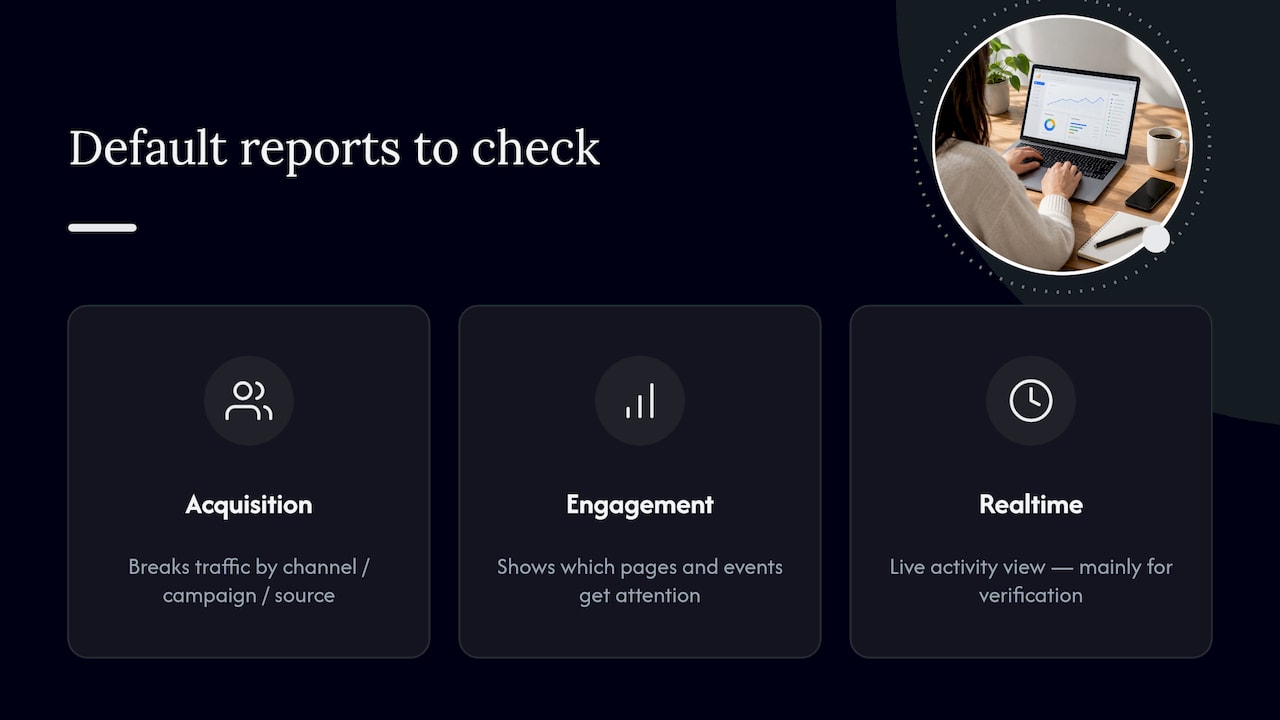
GA4’s default reports live under the Reports section, and three matter most for a small business: Acquisition, Engagement, and the Realtime overview. Acquisition shows where visitors came from, broken down by channel, campaign, or source. Engagement shows which pages and events get attention once people arrive. Realtime confirms activity as it happens, which is mostly useful for verification rather than ongoing analysis.
The default view of each report rarely matches what a specific business needs. Use the pencil icon in the top right of any report to add a secondary dimension, like landing page alongside traffic source, or swap the metric cards to show conversions instead of raw sessions. Saved, customized reports under “Library” let you build a small dashboard with only the four or five numbers that matter, rather than scrolling through metrics that have no bearing on revenue.
A monthly habit works better than checking GA4 daily. Pull the Acquisition report filtered to your key events once a month, note which channel drove the most conversions, and compare it to the previous month. Our guide to measuring website success walks through which specific metrics to track for that kind of routine check.
Connecting GA4 with the tools you already use
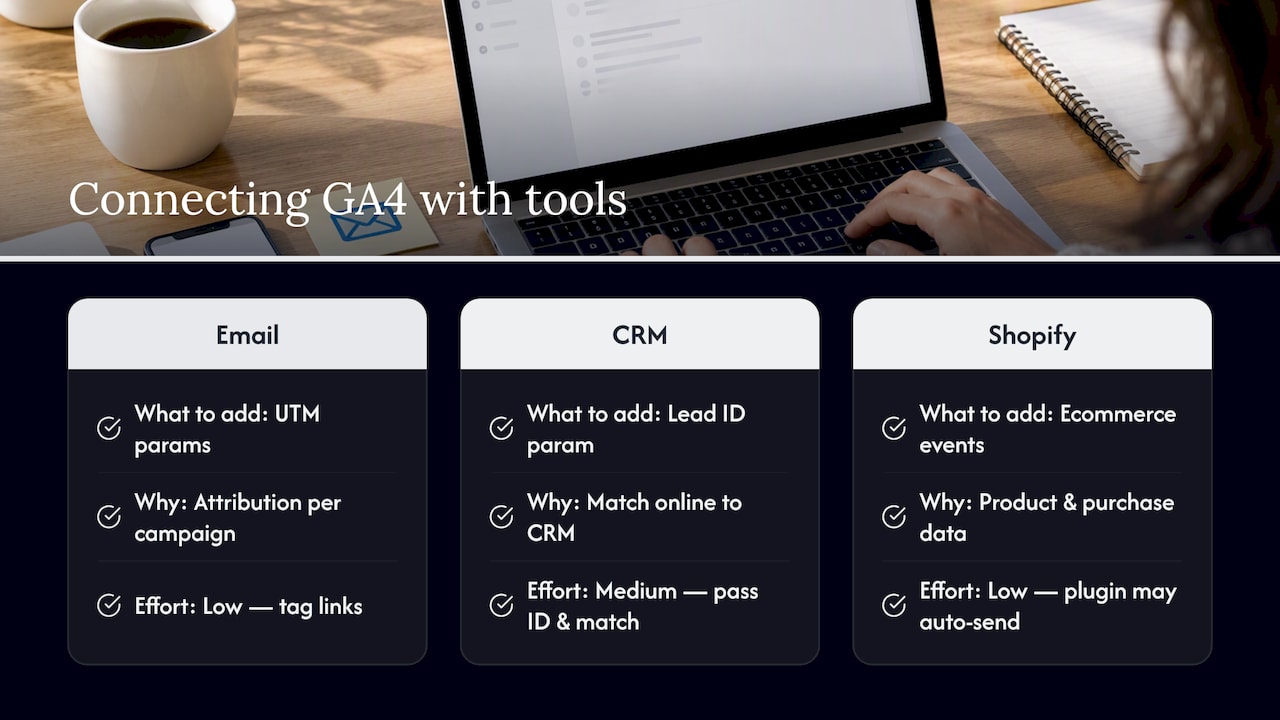
GA4 works best when it is not the only system holding customer data. If you run email campaigns through a platform like Mailchimp or Klaviyo, tag your campaign links with UTM parameters so GA4’s Acquisition report shows exactly which email drove which conversion instead of lumping all email traffic into one vague bucket. Our guide to fixing GA4 attribution with UTM fields covers the specific fields that make this work correctly.
CRM platforms rarely connect to GA4 directly without a middle step, but you can approximate the link by passing a unique identifier, like a lead ID, as a URL parameter when someone fills out a form, then matching that ID in both systems later. It is not seamless, but it closes the gap between “someone converted on the website” and “that lead became a paying customer.”
If you sell through Shopify or a similar platform, check whether your ecommerce or search tool already pushes structured data into GA4’s ecommerce events; tools built for platforms like Shopify, including options for site search and product discovery, often handle this automatically so you are not building custom events from scratch.
Author’s 30-day GA4 checklist
Days 1 to 3: confirm Realtime and DebugView work, mark three key conversions. Week 1 to 2: link Ads if you’re running campaigns, review top traffic sources. Month 1: set a routine report for conversion trends and UTM attribution.
— TONY
How we can help with GA4 setup and tracking
A correctly configured GA4 property saves you from guessing which marketing dollars actually work, and that is exactly where our team spends most of its setup time with small-business clients.

- We set up the property, data stream, and Google Tag Manager container so events match your actual funnel from day one.
- We mark the right conversions instead of leaving every button click flagged as equally important.
- We build reports so you can check a concise dashboard instead of multiple tabs.
If your site needs design or hosting work alongside analytics, a partner like TyTe Hosting’s web design team can handle the technical side while we handle tracking. For everything else, from SEO to ad campaigns built around the conversions you just set up, visit Ibrand and request a plan built around your site.
FAQ
Is Google Analytics discontinued?
No, Google Analytics is not discontinued. The older version, Universal Analytics, was retired, and Google confirms that UA properties and API access stopped working after July 1, 2024, while GA4 remains the active platform.
How much does GA4 cost to use?
GA4’s standard property tier is free to set up and run for most small businesses. Costs only appear if you choose to export data to BigQuery with streaming export, which Google notes carries processing and storage charges beyond the free sandbox tier.
Do I need a separate Google Analytics account for each website?
Not usually. Google’s guidance recommends one account with a separate property for each distinct website or app, which keeps billing, users, and settings centralized while still separating each site’s data.
Is GA4 replacing Google Analytics?
GA4 already replaced the previous version, Universal Analytics, as the active Google Analytics product. Google’s own announcement confirms Universal Analytics access ended after July 1, 2024, making GA4 the only option going forward.
Recent Comments