
Copy your g.page review link straight from Google Business Profile. That one URL opens the write a review form instantly, no searching, no extra taps. If you can’t get into the profile dashboard, a Google Maps share link or a Place ID URL works as a solid backup, and third party generators can help too, as long as you test the link before sending it to a single customer.
TL;DR:
- Using the official Google Business Profile “Get more reviews” feature provides the most reliable link, which is automatically generated by Google.
- Google Maps links can serve as quick alternatives but often direct customers to the listing page rather than the review form, especially on mobile devices.
- Place ID URLs are ideal for managing multiple locations, allowing scalable review requests through stored, tested links.
- Third-party tools and QR code generators are useful for batching or quick deployment but should always point back to your official g.page review link to prevent issues if Google updates review processes.
- Consistent, timely review requests via SMS within 24 hours and visible placement of QR codes alongside receipts or in-store displays significantly improve review acquisition.
Table of Contents
- How Do I Create a Google Review Link From My Business Profile?
- Can I Get a Review Link From Google Maps Instead?
- What Is a Place ID Link and When Should I Use One?
- Should I Use a Third-Party Review Link Generator?
- Should I Shorten or Brand My Review Link?
- How Do I Set Up a Google Review QR Code?
- When Is the Best Time to Ask for a Google Review?
- What Does Google’s Review Policy Actually Prohibit?
- Why Isn’t My Review Link Working?
- Simple Systems That Actually Move the Needle
- Let Ibrand Handle Your Review Link and Profile Setup
- Sources
- FAQ
How Do I Create a Google Review Link From My Business Profile?
The official Google Business Profile Help center calls this the most reliable path to a working review link, and for good reason: Google generates it for you, so there’s nothing to build or format yourself.
Here’s the exact process:
- Sign in at Business with the account tied to your listing.
- Pick the correct location if you manage more than one (this matters a lot for multi-location owners, more on that below).
- Look for the “Get more reviews” or “Ask for reviews” card on your dashboard home screen and click it.
- Copy the short g.page link Google displays. It’s already shortened, so you don’t need to run it through another tool.
- On desktop, you’ll also see an option to download a QR code. Grab that image now and save it somewhere your staff can find it later, like a shared drive folder named “reviews.”
That link and QR pair are your canonical source for everything else in this guide. Every text message, every printed sign, every email signature should point back to this one URL.
Pro Tip: Never test your review link while logged into your own Google account. Open a private or incognito browser window first. Logged-in owners sometimes see a different view than customers do, and you want to confirm the actual write a review dialog pops up, not just your business listing.
Can I Get a Review Link From Google Maps Instead?
Yes, and it’s a fine fallback when you don’t have Business Profile access yet or you’re in a hurry. The steps differ depending on whether you’re on a computer or your phone.
- Desktop: Open your business listing in Google Maps, click “Share,” and copy the link Google offers. If you navigate to the “Write a review” panel first, copying the URL from that exact view tends to land customers directly on the review form.
- Mobile app: Tap the Share icon on your listing. Android and iOS sometimes hand back a general listing link rather than the review form itself, which means the customer has to tap one more button once they land on the page.
- How to check which one you got: Paste the link into a private browser tab. If a review box with stars pops up immediately, you’re set. If you land on a business profile page instead, that’s a listing link, not a review link, and you should switch methods.
Maps links work fine for one-off asks. For anything repeated or automated, the g.page link or a Place ID URL is the more solid choice.
What Is a Place ID Link and When Should I Use One?
A Place ID link is built for scale. If you manage multiple locations or you’re feeding review requests into a CRM or automation platform, this is the method worth learning once and reusing forever.
- Find your Place ID using Google’s Place ID Finder tool, which returns a unique string for each business location.
- Drop that ID into this template:
search.google.com/local/writereview?placeid=YOUR_PLACE_ID. - Test the finished URL in a private window to confirm it opens the review dialog, not a search results page.
- Store a simple spreadsheet mapping each location name to its Place ID and finished URL, so anyone on your team can pull the right link without hunting for it again.
This method takes a little more setup than copying a g.page link, but it pays off the moment you’re managing more than two or three locations.
Should I Use a Third-Party Review Link Generator?
Generators and QR tools are worth using if you don’t have Business Profile access yet, or you need a batch of QR codes fast for multiple locations. They’re a convenience layer, not a replacement for the official link.
- Never use a tool that asks for your Google account password. Legitimate generators only need your business name or Place ID.
- Check that the tool shows you the final destination URL before you download or print anything, so you know exactly where customers will land.
- Confirm the tool is usable from wherever your business operates before you build a workflow around it.
- Always test the output link in a private browser window before it goes anywhere near a customer.
Pro Tip: Treat your g.page link as the master copy. Even if you generate a QR code through a third party tool, point it at your official g.page URL rather than a link the tool creates independently. That way, if Google ever changes how review links work, you’re only updating one source.
Should I Shorten or Brand My Review Link?
It depends on where the link is going. A g.page URL is short enough for a text message, but it means nothing to a customer reading it off a printed receipt. That’s where branding earns its keep.
- Branded redirect (something like yourdomain.com/review): best for print materials, business cards, and anywhere trust matters. If Google ever changes your underlying link, you update one redirect instead of reprinting every flyer in your shop.
- Bitly or a similar shortener: fastest option if you want click tracking without touching your website’s hosting settings, and it gives you basic analytics on how many people actually clicked before leaving a review.
- UTM parameters: tack these onto any link you’re tracking through Google Analytics, so you can see exactly which channel, an SMS blast versus an email footer, drove the most clicks.
The reasoning here is simple: SMS favors a short, direct g.page link because nobody wants to read a long URL on a phone screen, while anything going to print benefits from a branded redirect that still reads clearly even if someone copies it by hand.
How Do I Set Up a Google Review QR Code?
Google builds this for you the moment you open the “Get more reviews” card on desktop, and the QR image download only shows up in that same view, according to Google Business Profile Help. Save that PNG file the same day you generate it.
- Print the QR code large enough to scan easily from arm’s length, roughly 1.5 to 2 inches square works for most receipts and counter cards.
- Place it near the point of sale, on receipts, or on a small table tent where customers naturally pause.
- Pair it with your short branded URL in text underneath, for anyone whose camera app doesn’t scan on the first try.
Pro Tip: Test your printed QR code with at least two different phone types, one iPhone and one Android, before you order a big print run. Camera scanning quality varies more than most owners expect.
When Is the Best Time to Ask for a Google Review?
Timing and placement matter more than most owners assume. A review request sent at the wrong moment gets ignored no matter how good the service was.
- Text message within 24 hours of the job or visit. SMS open rates run dramatically higher than email, and asking while the experience is still fresh in the customer’s mind gets far better response rates than waiting a week.
- Printed on the receipt or invoice, right where the customer is already looking at the total.
- A dedicated thank-you page on your website, right after checkout or a booking confirmation.
- Your email signature, for ongoing client relationships where you’re in regular contact anyway.
- A small QR card at the counter or checkout, for walk-in businesses.
Two quick templates worth stealing:
- SMS: “Thanks for choosing us today! Mind leaving us a quick review? [your link]”
- Email: “It was great working with you. If you have 30 seconds, we’d really appreciate a review here: [your link]”
Keep both short. A one-line ask converts better than a paragraph explaining why reviews matter to your business, because the customer already knows.
What Does Google’s Review Policy Actually Prohibit?
Google explicitly bans offering incentives, free products, discounts, cash, or anything else, in exchange for a review. That includes offering a discount only to customers who agree to leave a review, which Google treats as fake engagement regardless of how the review itself reads.
- Ask every customer the same way, not just the ones you’re confident had a great experience.
- Respond to negative reviews professionally and publicly instead of trying to get them removed.
- Keep a simple log of who you asked and when, both for your own tracking and as a record if a review dispute ever comes up.
- Skip bulk, identical-looking requests sent all at once. That pattern reads as spam to Google’s systems.
Why Isn’t My Review Link Working?
Most problems trace back to one of three causes.
- No “Ask for reviews” button visible: you likely don’t have full owner or manager access. Ask the verified profile owner to grant you access, or fall back to a Maps share link in the meantime.
- Link opens the listing instead of the review form: switch to a g.page link or a Place ID URL, since Maps mobile shares sometimes default to the listing view.
- Reviews disappearing or getting blocked: check for a policy violation notice on your dashboard first, then consult Google Business Profile Help directly if enforcement action seems to be the cause.
Simple Systems That Actually Move the Needle
Most owners overthink this. The workflow that actually works is boring: one canonical g.page link, saved somewhere your whole team can find it, a text message sent within 24 hours of every job, and a QR code taped near the register for walk-ins. That’s it.
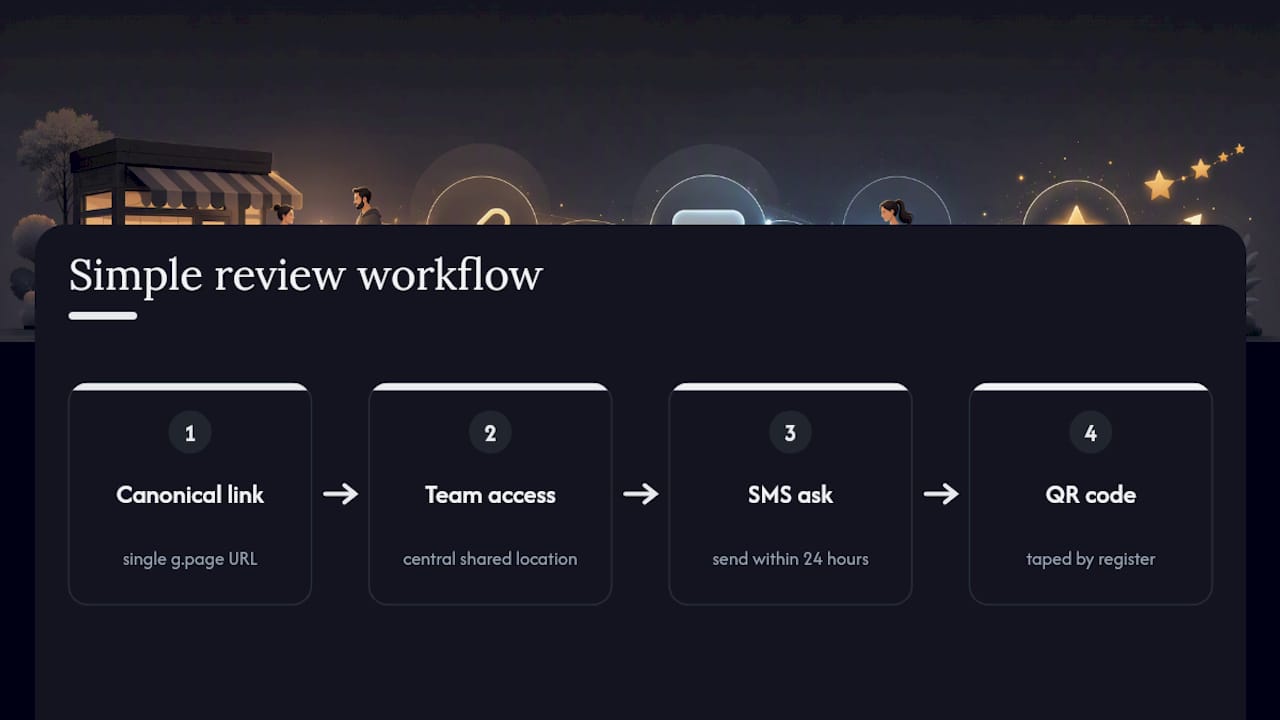
What separates businesses with steady review growth from the ones stuck at twenty reviews for two years isn’t a clever campaign. It’s consistency. A small, personal ask sent the same day, every time, outperforms an occasional email blast to your whole customer list. Track one number: click-to-review rate. If people click your link but don’t finish the review, the ask itself, not the link, is probably the problem.
For deeper local visibility work beyond review links, the Google Business Profile guide covers profile optimization that pairs well with a steady review flow.
— TONY
Let Ibrand Handle Your Review Link and Profile Setup
If you’ve read this far and you’d rather not manage g.page links, QR placement, and SMS timing yourself, that’s exactly the gap a specialized agency fills. Instead of piecing together a review workflow between other tasks, you get a managed setup: your Google Business Profile configured correctly, review link and QR distribution handled, and the SMS or email cadence built around when customers respond best.
This isn’t a replacement for asking your customers directly. That part still works best coming from you or your staff. What Ibrand does is remove the setup friction: getting your profile fully optimized, your local marketing running, and your review requests reaching customers at the right moment instead of getting lost in a to-do list. If your Business Profile still needs work beyond review links, the local visibility guide is worth a look, or you can reach out to Ibrand directly for a quick audit of what’s set up right now and what’s missing.
Sources
- Create a Google link or QR code to request reviews – Google Business Profile Help
- Google’s rules for incentivizing reviews – ApplauseHQ blog
FAQ
How Can I Leave a Google Review for a Company?
Search the business name on Google or Maps, click on its listing, and select “Write a review.” If the business has shared a direct g.page or review link with you, clicking it skips the search step entirely and opens the review form right away.
How Can I Generate Free Reviews on Google?
There’s no way to generate reviews for free in the sense of creating fake ones, and Google explicitly prohibits incentivized reviews. The real path to more reviews at no cost is asking every customer directly through a text message or printed QR code, both of which are free once your g.page link is set up.
How Do I Put Google Reviews on My Website for Free?
Google Business Profile doesn’t offer a native free widget, but several free embed tools let you pull your review feed into a website page using your business listing. A simpler no-cost option is linking your thank-you page directly to your Google review URL so visitors can read reviews on Google itself.
Why Can’t I Leave a Review on Google?
This usually means you’re not signed into a Google account, the business listing has reviews temporarily disabled, or you’re using a link that points to the business listing instead of the actual review form. Try opening the link in a private browser window signed into your Google account to rule out a login issue.
Where Do I Find My Business’s Official Google Review Link?
Sign into business.google.com, select your location, and open the “Get more reviews” or “Ask for reviews” card on the dashboard. The g.page link shown there is the official, shortened link Google generates specifically for your profile.
Recent Comments