
Yes, you can set up Apple Business, formerly called Apple Business Connect, for free: go to business.apple.com and begin sign-up with one Organization Administrator. Before you start, gather your business documents and a work email, because verification is required and runs on a strict clock.
TL;DR:
- Enter the legal name exactly as it appears on official paperwork, and prepare current business documents, website ownership proof, and DNS access before signup.
- Apple gives organizations 60 days to complete verification; missing the deadline can result in deletion of the organization and its data.
- Start domain verification early because DNS changes take time, and keep its TXT record live for features such as Verify with Wallet on the Web.
- Claim an existing Apple Maps place card when available, complete its category and contact details, and allow up to three calendar days for Showcase review.
- Choose a call, booking, or directions Action that matches your conversion goal, and add tracking parameters to custom URLs to measure visits or sales.
Table of Contents
- How to sign up and prepare your organization
- Verification methods and how to complete each
- Adding locations and building your first Showcase
- Choosing Actions that drive real conversions
- Keeping your Apple Business listing accurate over time
- Practical shortcuts for a faster, cleaner setup
- Why active management of your Apple listing pays off
- Let us handle your Apple Business setup and upkeep
- FAQ
- Sources
How to sign up and prepare your organization
Sign-up happens in one sitting if you have the right information ready. Apple built this flow for a single responsible person, called the Organization Administrator, who controls the account and approves later changes.
- Go to business.apple.com and select Sign Up.
- Choose whether the admin signs in with a personal Apple ID or creates a Managed Apple Account; a Managed Apple Account keeps business access separate from personal devices and is the safer pick for anyone who shares work logins.
- Enter your organization’s legal name exactly as it appears on official paperwork, since mismatches slow down verification.
- Add a work email, phone number, website, and time zone.
- Include your EIN or D-U-N-S number if your business structure requires one for verification.
- Use a real person’s name and direct contact details for the administrator role, not a shared inbox or department name.
- Confirm you’re on a current version of Safari or Chrome, since older browsers can cause the sign-up form to misbehave.
Before you click submit, assemble a short folder: your business license or registration document, your EIN or D-U-N-S number, proof of website ownership, and DNS login access in case you need to add a verification record. Having these ready turns a multi-day process into a same-day one.
Verification methods and how to complete each
Apple offers a few verification routes, and you typically need to complete more than one method depending on your business type. Picking the fastest route for your situation matters, because the clock starts the moment you submit sign-up.
- Phone verification: Apple calls or texts the number on file; answer promptly and confirm the business name read back to you.
- Document verification: Upload your EIN, D-U-N-S number, or business license; Apple’s reviewers match this against public registries, so scanned copies should be legible and current.
- Domain verification: Add a TXT record to your domain’s DNS settings to prove ownership; some features tied to this method, like Verify with Wallet on the Web, require keeping the TXT record live rather than removing it after approval.
- App Store Connect linkage: If you already manage an app under the same organization, linking accounts can speed up trust checks.
Apple enforces a 60-day verification window, and missing it can lead to deletion of the entire organization and its data. If a document gets rejected, check that the legal name on the upload matches what you entered at sign-up character for character.
Pro Tip: Start domain verification on day one, even if phone or document checks are still pending, since DNS changes can take time to propagate.
Adding locations and building your first Showcase
Once verification clears, you can add a new location or claim one Apple already created from public data. Claiming an existing place card is usually faster than starting fresh, since Apple already has baseline details to update rather than create.
- Choose the correct business category carefully, since this field drives how customers find you in Apple Maps searches.
- Fill in address, hours, phone, and website fields completely; partial listings rank and convert worse than complete ones.
- Build your Showcase with a headline, short body text, a properly sized image, and one clear call-to-action button.
- Set start and end dates if the Showcase is tied to a promotion or seasonal offer, and pick the languages your customers actually read.
Apple reviews Showcase submissions manually, and approval typically takes up to three calendar days, so plan creative deadlines with that window in mind.
Choosing Actions that drive real conversions
Actions turn your place card from a static listing into something customers can tap and use immediately. Apple supports several Action types, including call, directions, reservations, and custom links, and the system picks a default Action unless you actively choose one.
- Pick the Action that matches your strongest conversion path, such as booking a table or starting a call, rather than accepting the default.
- Check whether your chosen Action needs the Business Connect API or works with a simple configured URL; most small businesses only need the URL option.
- Add UTM or similar tracking parameters to your Action URL so you can see which taps turn into visits or sales in your own analytics.
Keeping your Apple Business listing accurate over time
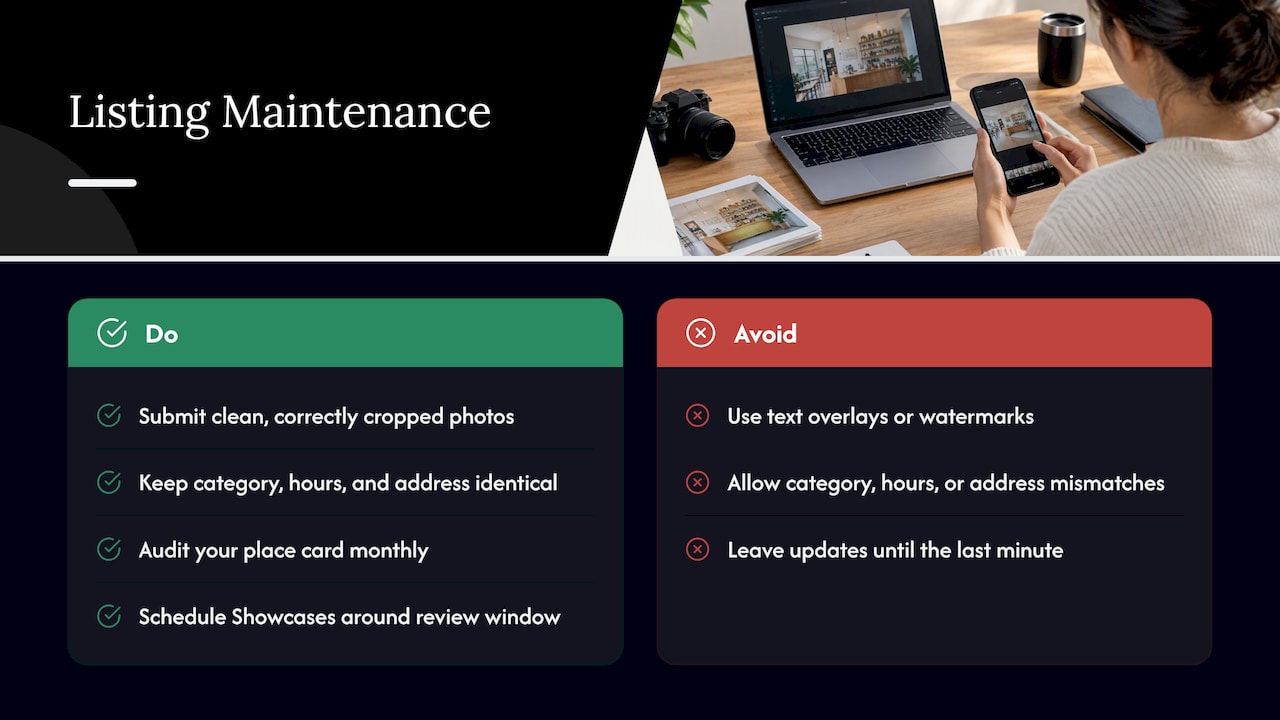
A verified listing still needs upkeep. Apple manually reviews photos and rejects ones with text overlays or watermarks, so submit clean, correctly cropped images only.
Keep your category, hours, and address identical to what’s listed on your own website and other directories; mismatched data confuses both customers and Apple’s own systems. A monthly audit of your place card, paired with scheduling new Showcases around that three-day review window, keeps your profile current without last-minute scrambling.
Pro Tip: Check your Apple Business listing against your Google Business Profile and website footer every month, since even small address or hour differences can trigger a re-review.
Practical shortcuts for a faster, cleaner setup
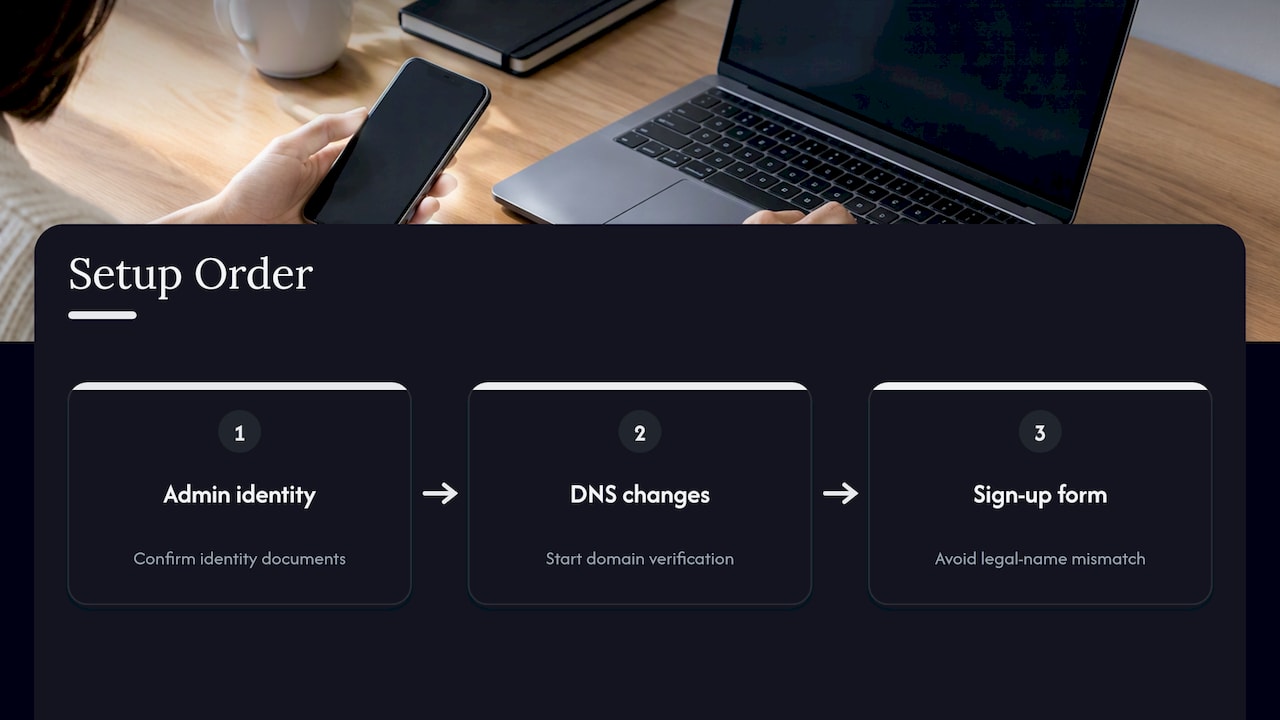
We’ve found the fastest setups follow a fixed sequence: confirm the admin’s identity documents first, start DNS changes for domain verification second, and only then submit the sign-up form, since this order avoids the most common rejection cause, a mismatched legal name.
Coordinating the person with DNS access before sign-up day saves the most time, as explained in the practical courses at the Local SEO + AEO + GEO Academy. We also sequence Apple place-card edits alongside other directory updates like Google Maps listings, so your business information stays consistent everywhere it appears.
Why active management of your Apple listing pays off
A verified profile that sits untouched after setup rarely outperforms a basic listing. Businesses that refresh Showcases and test different Actions tend to see more taps turn into calls or visits than those that set it up once and forget it.
Treat your place card like a small storefront window, not a filing cabinet entry; the businesses that rotate offers and track results get the engagement the feature was built for.
— TONY
Let us handle your Apple Business setup and upkeep
We manage the full setup process for small businesses that would rather spend their time running the business than reading verification documentation. Our team handles the administrator setup, document checks, domain verification, and Showcase creative so your listing goes live without the back-and-forth.
A typical engagement with us includes:
- A full audit of your current online listings and what’s missing or inconsistent.
- Complete Apple Business setup and verification support from document prep through approval.
- Showcase creative, scheduling, and Action configuration tied to your actual goals.
- Follow-up checks at 30 and 60 days to confirm your listing stays accurate and active.
Start with a quick audit through our services page and see exactly what your current listings need.
FAQ
How does Apple Business Connect work?
Apple Business lets a verified Organization Administrator manage brand details, locations, and promotional Showcases that appear across Apple Maps, Wallet, Messages, and Siri. Once verified, you can add Actions like calls or bookings directly to your place card, and Apple reviews Showcase content before it goes live.
Is Apple Business Connect worth it?
For most small businesses, an active, well-maintained Apple listing is worth the setup time since it puts your business directly in front of Apple Maps and Siri users at no cost. Businesses that keep Showcases current and pick the right Actions tend to get more direct engagement than those with a bare, unverified listing.
Is Apple Business Connect free?
Yes, Apple Business is a free portal open to businesses of any size, including online-only businesses without a physical storefront. There’s no published Apple fee for sign-up, verification, or publishing Showcases.
How do I register with Apple Business Connect?
Go to business.apple.com, select Sign Up, and designate one person as your Organization Administrator. You’ll then complete verification through phone, documents, or domain validation within Apple’s 60-day window before your listing can go live.
Recent Comments