
To set up GBP services, open your Business Profile, choose the right primary category, and use Edit services to add clear service names, descriptions, and booking links. Then verify the profile so changes publish, since unverified edits can sit unpublished and suspended profiles need an appeal to restore access. The checklist below walks through every step.
TL;DR:
- Only profiles with active verification can publish service edits, and some accounts may be restricted from editing their service list due to account limitations.
- Prioritize primary categories to match your core business, as they heavily influence search visibility, while secondary categories should be relevant but not overly numerous.
- Use structured service items for common offerings and custom entries for unique services to maximize search relevance and showcase what sets your business apart.
- Ensure your booking system integrates with an approved Google partner to automatically display the Book button; otherwise, adding a manual link requires testing and tracking for effectiveness.
- Regularly review your profile’s verification status, profile accuracy, and complete descriptions, and keep an eye on Insights to optimize ongoing local search performance.
Table of Contents
- Step-by-step: add or edit services and categories in your Business Profile
- How to write service names and descriptions that help customers and local SEO
- Enable bookings and online appointment links
- Verify your profile and manage ownership and access
- If your profile is suspended or restricted: how to diagnose and appeal
- Bulk management and API basics for multiple locations
- Practical troubleshooting checklist and common mistakes to avoid
- Author perspective: how an agency handles GBP service lists
- How Ibrand can help set up and optimize GBP services
- FAQ
- Sources
Step-by-step: add or edit services and categories in your Business Profile
You can reach the service editor two ways: search “edit my business” on Google while signed into the account that manages the profile, or sign into Business Profile Manager directly. Both paths lead to the same Edit services panel, where you add, remove, or reorder service items.
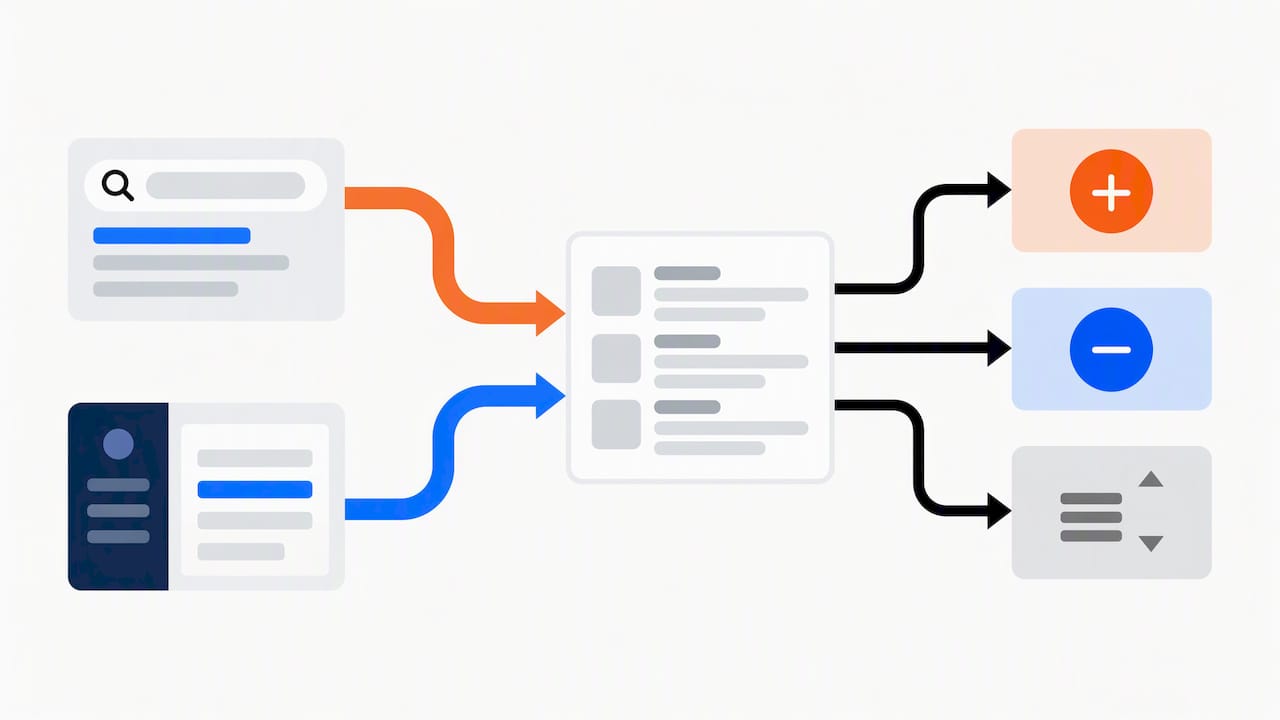
Before touching services, lock in your categories. Your primary category is the single strongest signal Google uses to decide which searches your profile should appear in, according to Google’s services playbook, so pick the one that matches your core business, not the one with the broadest reach. Secondary categories add context for related work you also perform. Google caps the total at 10 categories, so prioritize relevance over volume: a bakery that also caters should list “Bakery” first and “Catering” second, not the reverse.
Once categories are set, build your service list:
- Open Edit services and select your primary category’s service menu, which shows a dropdown of structured, predefined service items Google already recognizes.
- Check the boxes for every structured service you actually offer, since these feed directly into search filters and comparison features.
- Use “Add custom service” for anything the dropdown does not cover. This creates a FreeFormServiceItem with a name and description you write yourself.
- Group related services under logical headers (for example, “Plumbing repair” and “Drain cleaning” under a “Plumbing” section) so customers scan the list quickly.
- Save each entry and confirm it appears on the live profile within a few hours.
The distinction between structured and custom items matters more than most owners realize. Structured service items are Google’s own taxonomy: they are searchable, comparable across competitors, and less flexible. Custom items let you describe something specific to your business, like “same-day emergency water heater replacement,” which a structured dropdown will never offer. Use structured items for anything that matches, and reserve custom entries for the services that make your business different. Not every profile has full editing rights. Google’s support documentation notes that some profiles cannot modify their service list at all, a limitation tied to a metadata flag called canModifyServiceList, so if the Edit services option is missing or grayed out, that is the first thing to check before assuming a technical error. For a broader walkthrough of profile setup beyond services, A comprehensive Google Business Profile guide covers the full optimization sequence.
How to write service names and descriptions that help customers and local SEO
A service name should tell a stranger exactly what they get in four or five words. “Kitchen remodeling” beats “Renovation solutions.” “Emergency pipe repair” beats “Plumbing services, residential and commercial.” Jargon and internal department names slow the reader down and do nothing for search relevance.
Descriptions have roughly 300 characters to work with, so spend them on the outcome, not the process. A locksmith writing “We offer rekeying” tells the customer nothing; “Rekey your home’s locks in under an hour, no new hardware needed” tells them what changes and how fast. Google’s services playbook frames complete, specific service descriptions as a direct input into how well Google matches a search to your listing.
A few rules keep descriptions useful instead of cluttered:
- Mention your service area naturally when it is relevant, such as “serving the downtown and riverside neighborhoods,” rather than stuffing in every zip code you cover.
- Skip exact prices if your work varies by job; use a range or “from” pricing instead so the number stays accurate.
- Never include a phone number, email, or website inside a service description. It violates Google’s content guidelines and can get a listing flagged.
- Write each description once and resist repeating the same keyword phrase across multiple services. Google reads that as stuffing, not thoroughness.
Pro Tip: Write the description as if you’re answering the customer’s unspoken question, “Why should I pick this over the shop down the street?”
Service-area businesses face an extra wrinkle: your descriptions have to work without a storefront address pulling local weight. A service area business SEO guide goes deeper on structuring listings when your business travels to the customer instead of the other way around.
Enable bookings and online appointment links
Whether you get the “Book” button on your profile depends largely on whether your booking system integrates with an approved Reserve with Google partner. If it does, the button appears automatically once that integration syncs. If it does not, you can still add a manual appointment link that opens your own scheduling page or a third-party tool.
A few practical points make the difference between a booking link that works and one customers abandon:
- Test the full booking flow yourself from a phone, since mobile is where most profile visitors convert.
- Track bookings that originate from the profile link separately from your general website traffic, so you know whether the GBP listing is actually producing appointments.
- If the Book button never appears despite having a compatible system, check that your business category supports bookings and that your integration partner has confirmed the sync on their end.
If you are evaluating booking or scheduling tools for the first time, reviewing how other service providers structure their booking workflows, as shown in Commercial Projects, can clarify what a working integration should look like before you commit to one.
Verify your profile and manage ownership and access
Verification is what unlocks publishing for every edit you make, services included. Google assigns a verification method based on your business type and history: postcard by mail, phone, video walkthrough, or bulk verification for multi-location operators. You do not choose the method; Google offers whichever ones your account qualifies for, and sometimes more than one appears as an option.
To stay in control of your listing over time, follow this sequence:
- Claim the profile under an account you personally control, ideally one tied to your business email rather than a personal inbox that might be shared or abandoned.
- Keep that account as the primary owner and add employees, agency partners, or developers as managers instead of co-owners, which preserves your ability to revoke access later.
- Check verification status inside Business Profile Manager under the business info tab; a pending or failed status will show there before it shows anywhere else.
- If verification fails, confirm your business address and name match public records exactly, then request the next available method rather than resubmitting the same one.
Google’s guidelines on eligibility and ownership stress that owners, not managers or outside agencies, should hold primary control of the account long-term. That distinction matters when you eventually part ways with a web developer or marketing contractor: if they hold primary ownership, reclaiming the listing becomes a dispute instead of a simple access change.
If your profile is suspended or restricted: how to diagnose and appeal
Suspensions usually trace back to a handful of causes: mismatched business information, suspected fake engagement, a name that violates naming guidelines, or an address that cannot be verified as a real place of business. Google’s policy restrictions page lists these triggers and notes that a restriction can limit specific features, like review posting, without fully disabling the profile.
Start by checking the dashboard notification, which usually names the general category of violation even when it does not explain the specific trigger. From there:
- Open the appeals tool linked from the suspension notice rather than searching for a generic contact form.
- Gather evidence before you start the appeal, since Google’s suspension guidance describes a 60-minute window to upload supporting documents once the appeal begins.
- Strong evidence includes a business license, a recent utility bill showing the business address, and photos of a physical sign or storefront where applicable.
- Submit one appeal per affected profile rather than bundling multiple locations into a single request, which can slow review.
One practical figure worth knowing going in: Google’s own appeal documentation confirms the evidence upload is time-boxed to 60 minutes, so assemble your documents before you click start.
If the first appeal is denied, Google’s process allows for additional review requests rather than a single final answer, so a denial is a setback, not necessarily the end of the road.
Bulk management and API basics for multiple locations
Operators with many locations generally choose between Google’s bulk verification tool and the Business Profile API, and the right choice depends on scale and technical resources.
- Bulk verification through a spreadsheet upload typically requires a minimum location count, and Google’s bulk verification guidance notes specific required fields and common upload errors to watch for.
- Service-area businesses face added restrictions in bulk tools since they lack a single verifiable storefront address, often requiring a code-based verification path instead.
- Developers working through the Business Profile API should know that updating services with updateMask=serviceItems generally replaces the entire service list, not just the items included in that call, so partial updates need care.
- The API distinguishes StructuredServiceItem from FreeFormServiceItem, mirroring the same choice you make manually in Edit services.
Practical troubleshooting checklist and common mistakes to avoid
Before calling the setup finished, run through this sequence:
- Confirm verification status shows active, not pending.
- Recheck primary and secondary categories for accuracy.
- Review every service name and description for completeness.
- Add or refresh photos tied to specific services.
- Test the booking link end to end.
- Respond to any pending reviews mentioning specific services.
- Walk through the customer-facing profile on mobile.
- Check Insights weekly for the first month, then monthly once performance stabilizes.
Common mistakes include blank service descriptions, a business name or address that does not match your actual signage or website, claiming a profile without the owner’s consent, and overloading descriptions with repeated keywords. Profile optimization tips cover these pitfalls in more depth.
Pro Tip: Screenshot your service list every time you make changes, so you have a record if something disappears after an update.
Author perspective: how an agency handles GBP service lists
An agency audit of a client’s profile typically follows a sequence: confirm eligibility and verification status first, then categories, then the service list itself, then booking integration. Skipping ahead to service copy before fixing a shaky category choice wastes the effort, since Google weighs category relevance heavily before it ever reads a description.
Writing the service copy itself is a collaboration, not a handoff. Owners know the nuance of what they actually do; an outside writer knows how to phrase it for both the customer and the algorithm. Outsourcing tends to make the most sense when an owner is managing the business day to day with no time left for profile maintenance, when multiple locations multiply the setup work, or when an appeal is already underway and needs a steady hand.
— TONY
How Ibrand can help set up and optimize GBP services
Setting up a service list correctly takes an afternoon the first time and ongoing attention after that, which is exactly the gap Ibrand’s local marketing work is built to close. Professional digital marketing services often handle the full sequence: category selection, service list structure, booking link integration, and verification troubleshooting when an appeal is needed.
An audit typically starts with a review of your current profile against the gaps covered above, categories, service completeness, booking status, and verification health, followed by a plan specific to what’s missing. If your own web presence needs attention alongside your profile, a website optimization guide may pair well with profile work. For businesses that would rather hand off the setup entirely, Ibrand’s full service list is the starting point for a custom plan.
FAQ
How do I set up a Google Business Profile from scratch?
Search for your business name on Google or Maps, claim it if it already exists, or create a new listing through Business Profile Manager if it does not. Complete your business info, select categories, add services, then verify the profile using whichever method Google offers your business type.
What replaced Google My Business?
Google My Business was folded into what is now called Google Business Profile, managed directly through Search and Maps rather than a separate app. The underlying features, including services, post, and reviews, carried over under the new name as described on the Business Profile landing page.
My Google Business account has been suspended. How can I fix it?
Open the appeals tool linked from your suspension notice and submit supporting evidence, such as a business license or utility bill, within the 60-minute upload window Google provides once the appeal starts. If that appeal is denied, you can request an additional review rather than treating the denial as final.
Do I need an LLC to have a Google Business Profile?
No, Google does not require a specific business structure like an LLC to create or verify a profile. You do need to represent a real, operating business with accurate name, address, and category information that matches public records, per Google’s eligibility guidelines.
Can every business add a service list to its profile?
Not automatically. Google’s service eligibility documentation notes that some profiles lack the ability to modify their service list, a restriction tied to the business category and account status rather than something owners can toggle on themselves.
Sources
- Services GBP Best Practices Playbook 2026
- Get Listed on Google – Google Business Profile
- Business Profile services (developers)
Recent Comments