
Start with the Google Ads Ad Preview & Diagnosis tool and check your account’s notification bell. If you see impressions logged in your account, your ads are running, even if you personally can’t find them in a search. That single check resolves most panic calls before you touch a single setting. Once confirmed, the checklist below covers everything else.
TL;DR:
- Most delivery issues stem from insufficient budget, low bids, or restrictive targeting, which can be identified through quick checks and the Budget Simulator tool.
- Campaigns may not show ads due to policy disapprovals, paused statuses, or low ad strength; fixing these requires reviewing ad policies and improving ad relevance and quality.
- Overly narrow location, audience, or keyword settings can drastically reduce impressions, so expanding or adjusting these parameters based on data can restore visibility.
- Account-level problems like billing holds, suspensions, or verification issues cause total ad outages and need direct support intervention, not just campaign tweaks.
- Genuine platform glitches are rare and often temporary; confirming suspicions with multiple data points before making rushed changes prevents unnecessary disruptions.
Table of Contents
- Why Are My Google Ads Not Showing? Quick Checks First
- Common Causes for Google Ads Not Showing (and the Fixes)
- Is Your Targeting Too Narrow to Get Impressions?
- Could Bad Conversion Data Be Blocking Smart Bidding?
- Account-Level Problems That Stop Ads Entirely
- How to Verify the Fix Actually Worked
- Tony’s Practical Checklist for Small-Business Advertisers
- Why Quality Score Still Shapes Whether Your Ad Shows
- How Ad Rank and Auction Insights Explain Missing Impressions
- Do Location or Device Targeting Mismatches Explain the Gap?
- When the Problem Is Google Ads Itself
- Should You Fix This Yourself or Hire Help?
- Get a Straight Answer on Your Account, Not More Guesswork
- Sources
- FAQ
Why Are My Google Ads Not Showing? Quick Checks First
Run these five checks before changing anything. Most delivery problems trace back to one of them, and you can rule each out in under ten minutes.
- Open Ad Preview & Diagnosis instead of searching Google yourself. Searching for your own ad can quietly lower your account’s click-through rate and train the system to show it to you less, which creates a false alarm.
- Check the notification bell and your account email for holds, suspensions, or verification requests.
- Confirm campaign, ad group, and ad status, plus the campaign start and end dates. A stray end date from an old promotion is a common culprit.
- Open the billing summary and check for failed payments or pending verification.
- Look at Reports or the Overview tab for impressions and clicks over the last seven days, not just today.
The platform’s own diagnostic insights and recommendations tab often flags the exact issue, including disapproved ads or ad groups paused for low activity.
Common Causes for Google Ads Not Showing (and the Fixes)
Once the quick checks are clear, the problem usually lives in one of five places.
- Budget too low. If your dashboard says “Limited by budget,” your daily spend cap is choking delivery. A practical guideline is setting the daily budget to at least 10 times your expected cost per click, or 2 to 3 times your Target CPA while the campaign gets initial traction.
- Bids too weak for the auction. Low bids combined with a poor Ad Rank mean you lose every auction before impressions even register. Raising bids, tightening keyword-to-ad relevance, and improving your landing page all move the needle.
- Ad scheduling or date ranges cutting you off. Check for an ad schedule that excludes your busiest hours, or an ad group still paused from a previous test.
- Policy disapprovals. Click into the ad’s status for the specific policy reason, fix the flagged element (often a claim, image, or destination URL issue), then resubmit. Appeals typically take a few business days.
- Weak Ad Strength on responsive ads. Ads with only two or three headlines rarely enter enough auctions. Add headlines and descriptions until Ad Strength reads “Good” or “Excellent,” and supply multiple image sizes if you’re running Performance Max or Display.
Pro Tip: Before raising your budget, check the Budget Simulator inside the campaign settings. It shows roughly how many extra impressions and clicks a higher cap would have earned you over the past week, so you’re not guessing.
For a broader look at pacing mistakes that quietly starve campaigns, see Ibrand’s breakdown of common marketing mistakes small businesses make.
Is Your Targeting Too Narrow to Get Impressions?
Overly tight targeting is the quiet killer. Stack a small city, a narrow audience, and a handful of exact-match keywords and you may have zero auctions left to enter.
- Location settings. Check whether you’re targeting “presence” only versus “presence or interest,” and widen the radius if your service area is genuinely broader than the map shows.
- Audience targeting. Switch new or uncertain audience segments to Observation mode instead of Targeting, so you gather performance data without restricting reach.
- Keyword match types. A campaign built entirely on exact match rarely gets enough volume. Add phrase match thoughtfully and review your negative keyword list for accidental overlaps.
- Campaign overlap. Two campaigns bidding on the same terms compete against each other internally. Consolidate similar campaigns or adjust priority settings so they stop bidding against themselves.
For location-specific setups, Ibrand’s guide on running local ads covers geo-targeting settings in more depth.
Could Bad Conversion Data Be Blocking Smart Bidding?
Smart Bidding strategies like Target CPA and Maximize Conversions need real conversion data to function. If your tag misfires or stops recording, the algorithm has nothing to learn from and pulls back on serving.
- Verify your tags fire correctly using Google Tag Assistant or a real-time test purchase or form submission.
- Expect a learning phase of roughly 5 to 7 days after any major bid, budget, or strategy change, and avoid editing again mid-window.
- Switch to Maximize Clicks or manual CPC temporarily while you rebuild a clean conversion history, then move back to automated bidding once data flows steadily.
If tracking setup is the actual gap, Ibrand’s conversion tracking guide walks through tag setup step by step.
Account-Level Problems That Stop Ads Entirely
Some issues have nothing to do with campaign settings. They stop every ad in the account at once, and they need a different kind of fix.
- Billing holds. Check the Billing section for a “payment declined” or “pending verification” status. Update the card or bank details and confirm the charge clears.
- Suspensions and security reviews. Google communicates these through the account notification panel and email, usually with a specific policy reason attached. Read the notice carefully before appealing.
- Identity or business verification. Some accounts need submitted documentation (business registration, ID) before ads resume. Submit exactly what’s requested; partial submissions restart the review clock.
- Contacting support. If none of the above resolves it, contact Google Ads support with your account ID, the exact error message, and a screenshot of the notification ready to go.
How to Verify the Fix Actually Worked
Confirming a fix without accidentally sabotaging your own data takes a bit of discipline.
- Recheck Ad Preview & Diagnosis rather than manually searching, since manual searches skew your own CTR without telling you anything new.
- Watch impressions in your account over 24 to 48 hours, and give Smart Bidding its full learning window before judging results.
- Use an incognito window or a different device to rule out a browser display quirk rather than an actual serving issue.
Pro Tip: Check impressions at two different times of day, morning and evening, and jot down what you changed and when. That log makes it obvious whether a dip is the learning phase settling or a new problem.
Tony’s Practical Checklist for Small-Business Advertisers
Most Google Ads problems Ibrand sees in small accounts trace back to one of five recurring habits, not some mysterious platform bug. A quick weekly audit catches nearly all of them before they cost real budget.
- Check billing status and payment method health.
- Confirm every campaign, ad group, and ad is still active and not sitting on an expired date range.
- Review budget pacing against the Budget Simulator’s suggested range.
- Pull your top five keywords by impressions and check for sudden drops.
- Confirm conversions are still recording daily, not just weekly.
The accounts that stay healthy aren’t the ones with the biggest budgets. They’re the ones somebody actually looks at every week.
Why Quality Score Still Shapes Whether Your Ad Shows
Quality Score is Google’s shorthand for how relevant your keyword, ad, and landing page are to the person searching. It’s scored 1 to 10 and built from three components: expected click-through rate, ad relevance, and landing page experience. You won’t see it as a single visible auction input, but it directly shapes the metric that decides whether you show up at all.
A low Quality Score means you pay more for the same position, or lose the auction outright to a competitor with a weaker bid but tighter relevance. This is why two advertisers bidding the same amount can get wildly different results. One matches ad copy tightly to the search term and sends traffic to a fast, relevant landing page. The other uses a generic ad pointing to a homepage, and the algorithm quietly penalizes it on every single auction.
Fixing Quality Score isn’t about tricking the system. It’s about tightening the match between what someone searches, what your ad says, and what they land on. Split broad ad groups into smaller, tightly themed ones. Rewrite ad copy to mirror the actual keyword. Make sure the landing page loads fast and answers the exact question the ad promised.
Small businesses often skip this because it feels like copywriting busywork rather than a technical fix. It isn’t. A jump from a Quality Score of 4 to 7 can cut your effective cost per click substantially while improving how often you show up in the first place, because Google rewards relevance with cheaper, more frequent placement.
How Ad Rank and Auction Insights Explain Missing Impressions
Every time someone searches, Google runs an instant auction among every eligible advertiser. Your Ad Rank, a combination of your bid, Quality Score, and expected impact of ad extensions and formats, determines whether you clear the bar to show up at all, and where you land if you do.
This is why raising your bid alone sometimes does nothing. If your Ad Rank is still below the threshold needed to enter the auction, a bigger bid on a low-relevance ad just burns budget faster without buying visibility. The fix has to address both sides: the bid and the relevance score behind it.
The Auction Insights report, available at the campaign, ad group, or keyword level, shows exactly how you stack up against other advertisers competing for the same searches. Look at three columns specifically: impression share, overlap rate, and position above rate. A low impression share paired with a high overlap rate against one specific competitor tells you exactly who is outbidding or out-ranking you, and on which terms.
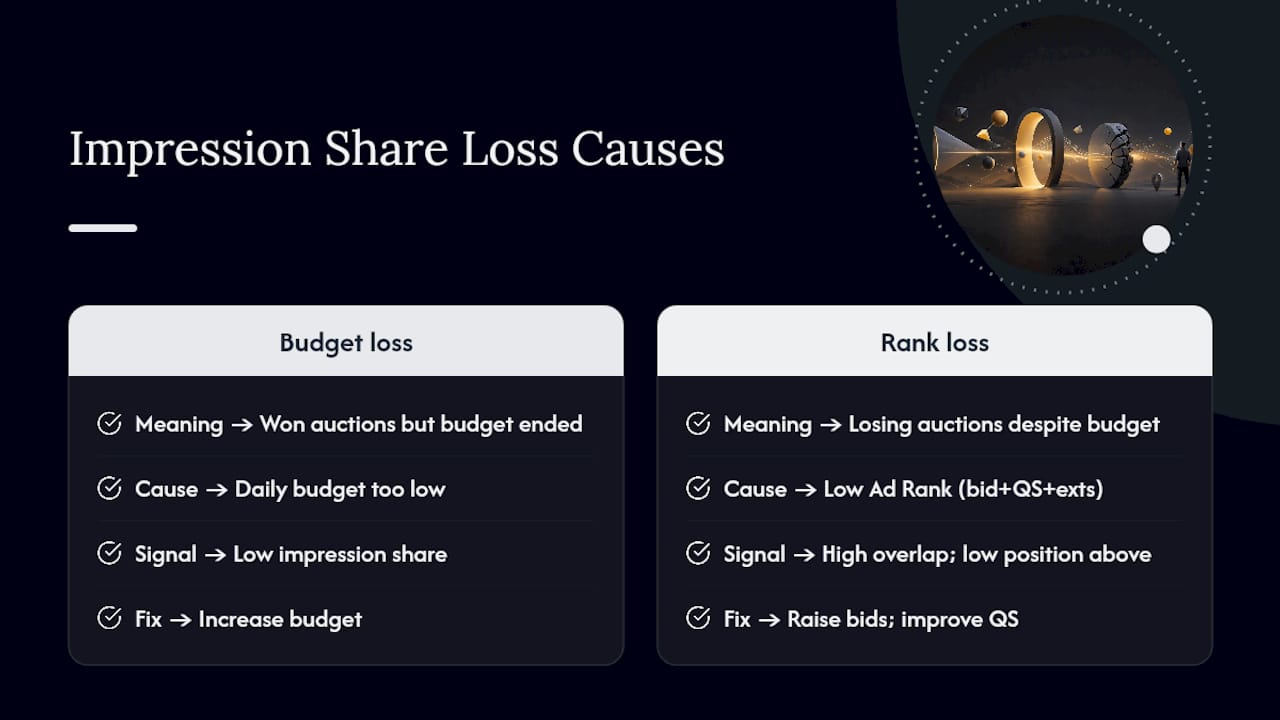
Impression share loss breaks into two categories worth checking separately: lost to budget and lost to rank. Lost to budget means you’re winning auctions you enter but running out of money before the day ends, which points back to the budget fix covered earlier. Lost to rank means you’re losing auctions you could afford to enter, which points to bid or Quality Score problems instead. Confusing the two leads advertisers to raise budgets when they actually needed to raise bids, or vice versa, wasting a week before they notice.
Do Location or Device Targeting Mismatches Explain the Gap?
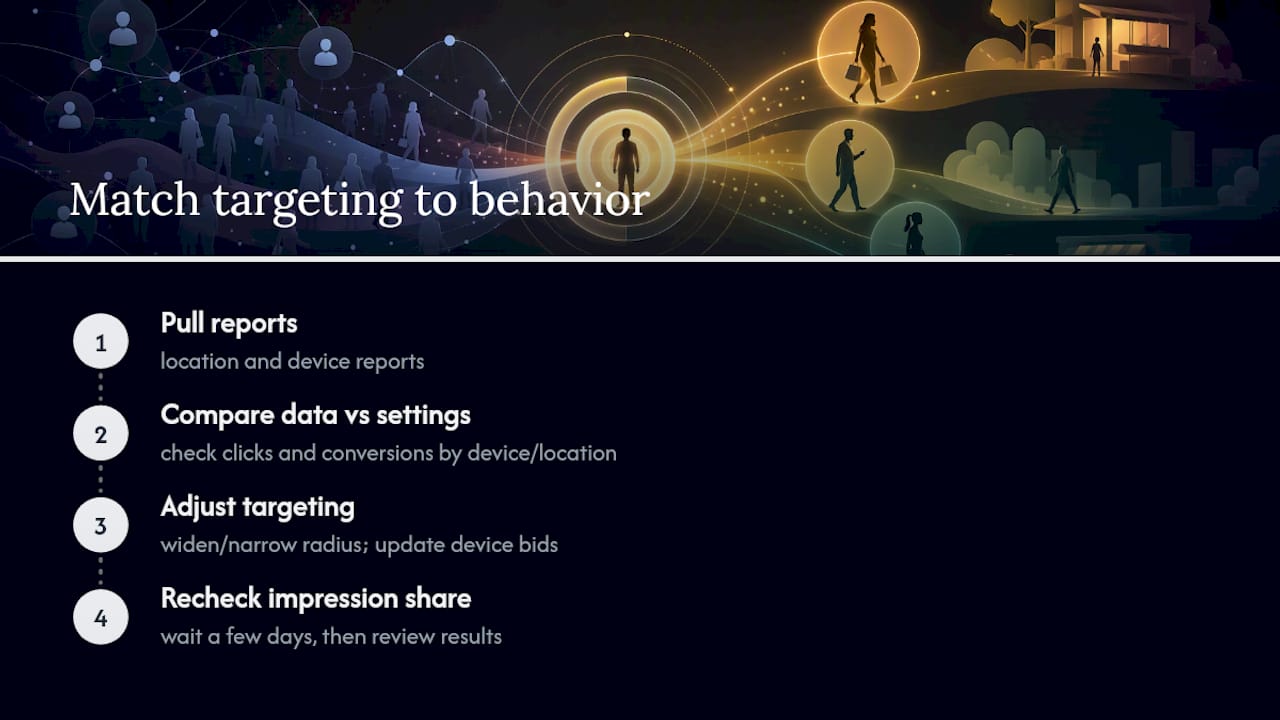
A mismatch between where you target and where your customers actually search is one of the most common reasons a local business sees near-zero impressions despite a healthy budget.
Google Ads location targeting defaults to “Presence or interest,” which shows your ad to people physically outside your area if they’re merely searching about that area. For most local service businesses, this wastes budget on irrelevant clicks. Switching to “Presence” tightens targeting to people actually located in your zone, which sounds like it should increase relevance but can also shrink your reach further if the radius itself is too small.
Device targeting causes a quieter version of the same problem. If your bid adjustments heavily favor desktop but most of your customers search on mobile during commute hours, you’re effectively bidding your ad out of the auctions that matter most. Check the Devices tab under campaign segments and compare your bid adjustments against where your actual clicks and conversions come from, not where you assumed they’d come from.
The fix in both cases is the same principle: match settings to actual customer behavior, not assumptions about it. Pull the location and device reports before adjusting anything, widen or narrow based on what the data shows, and recheck impression share a few days later. Ibrand’s guide to running local ads covers radius and device-bid adjustments for local service businesses in more detail.
When the Problem Is Google Ads Itself
Occasionally, none of the above applies and the issue is a genuine platform glitch. These are rarer than advertisers assume, but they happen: a reporting delay that makes impressions appear at zero for a few hours while ads are actually serving normally, a UI caching bug that shows an outdated ad status, or a delayed sync between the mobile app and the desktop interface.
The tell is usually a mismatch between what different views show you. If the app says “Paused” but the desktop dashboard says “Enabled,” or if impressions suddenly show zero for every campaign at once rather than just yours, that points to a platform-side issue rather than something in your account. Clearing your browser cache, logging out and back in, or checking Google’s own troubleshooter for known service disruptions usually confirms which it is within minutes.
Genuine outages tend to resolve within hours and rarely require any action from you. The mistake to avoid is making panicked changes, like raising bids or budgets, in response to a display glitch that would have corrected itself. Wait for a second data point, typically 24 hours of impression history, before concluding the platform itself was at fault rather than a setting you touched.
Should You Fix This Yourself or Hire Help?
Billing errors, a paused campaign, or an obviously stale end date are all DIY territory. You’ll spot and fix those in the checklist above within an hour.
Suspensions, repeated policy disapprovals, or a Smart Bidding strategy that never stabilizes are different. Those usually mean something structural is off, and untangling it eats days you don’t have. An agency audit typically checks account health, prioritizes the fixes by impact, and monitors results over the following weeks rather than declaring victory after one afternoon.
— TONY
Get a Straight Answer on Your Account, Not More Guesswork
Ibrand runs a full ad-audit for small businesses that covers exactly what this article walked through: account health, billing status, targeting settings, and conversion tracking accuracy, all in one pass instead of a piecemeal search through help articles.
The audit produces a prioritized fix list ranked by impact, not just a checklist of everything that could theoretically be wrong. Landing page and tracking issues often surface alongside the ad settings themselves, which is why Ibrand also looks at how your website is optimized for search as part of the same review. Most clients get the audit report back within a few business days, with an optional 30-day monitoring window to confirm the fixes actually held once traffic resumes. If your campaigns still aren’t showing after running through the checklist above, request the audit and get a second set of eyes on the account before another week of budget goes unspent.
FAQ
Why Are My Google Ads Suddenly Not Working?
Sudden stops usually trace to a billing failure, a policy suspension, or a budget cap hit mid-day. Check the notification bell first, since Google flags account-level issues there immediately.
Why Aren’t My Ads Showing When I Search for Them?
Searching manually can lower your own click-through rate and skew delivery against you. Use the Ad Preview & Diagnosis tool instead, which checks serving without affecting your account’s data.
Is There a Problem With Google Ads Today?
Genuine platform-wide outages are uncommon and usually show up as a mismatch between the app and desktop dashboard. If only your account shows zero impressions while your billing and campaign status look normal, the issue is almost always account-specific rather than a broader outage.
How Do I Turn Google Ads Back On After a Pause?
Go to the campaign or ad group, switch the status from “Paused” to “Enabled,” and confirm the date range hasn’t expired. If the system paused it for low activity, only resume it when you expect real traffic, since re-pausing can happen again without a targeting change.
What’s the Fastest Fix for “Limited by Budget”?
Raise your daily budget toward roughly 10 times your expected cost per click, or check the Budget Simulator for a data-backed recommendation before committing to a specific number.
Recent Comments